Flutter for OpenHarmony:从零搭建今日资讯App(二十)浏览历史功能的完整实现
本文介绍了如何实现一个完整的浏览历史功能,包括数据模型设计、Provider状态管理、页面交互等核心要点。浏览历史与收藏功能的主要区别在于:浏览历史是被动记录且需要定期清理,而收藏是用户主动行为。实现时需要注意按日期分组展示、滑动删除、批量清空等交互细节。文章还详细讲解了如何通过Provider管理历史数据,包括去重处理、限制最大记录数、本地存储等关键逻辑,为开发者提供了完整的解决方案。
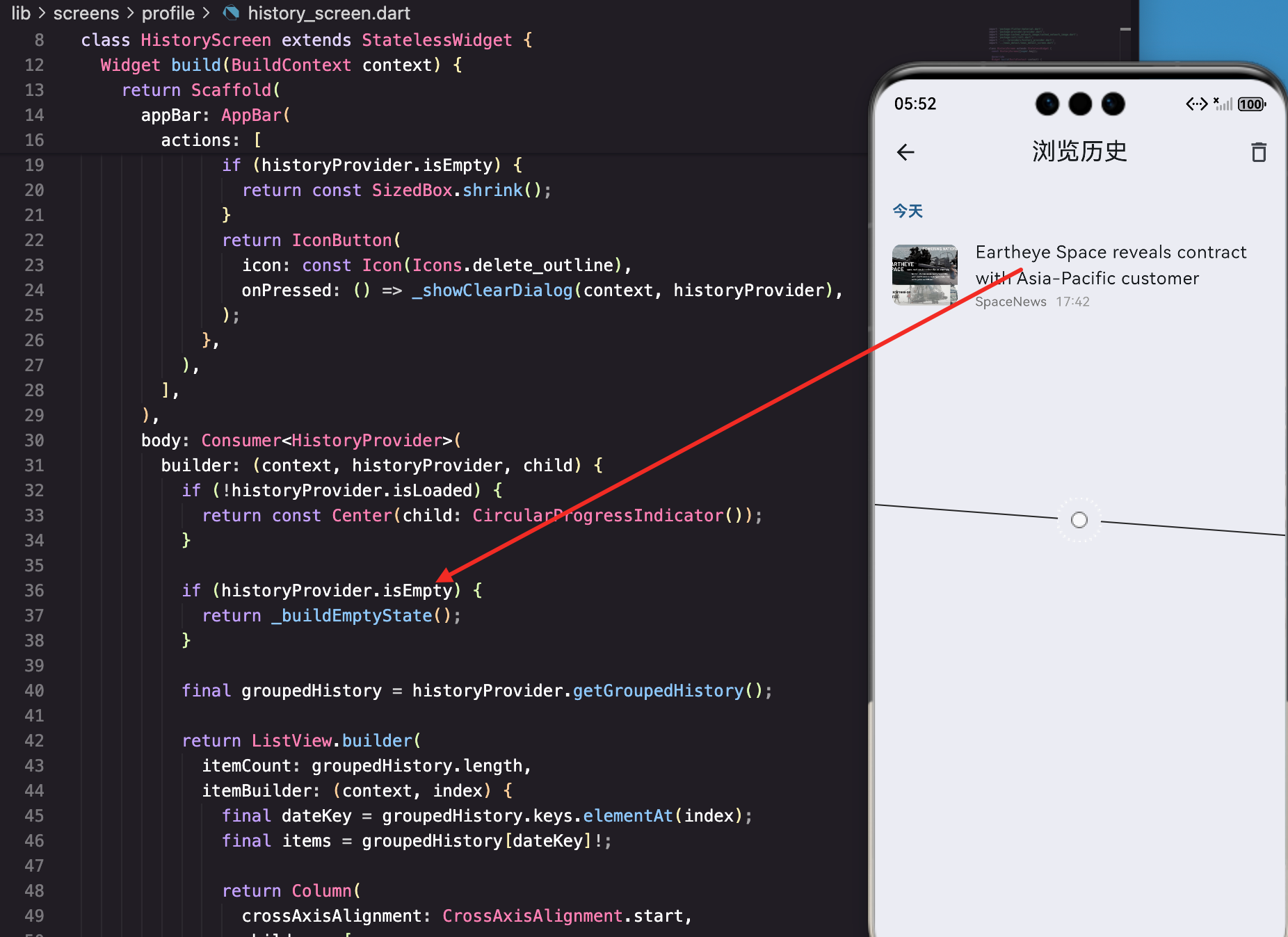
浏览历史这个功能,用户可能不会天天用,但真要找之前看过的文章时,没有它就很抓狂。特别是那种"昨天看到一篇文章挺好的,想再看一遍,但忘了标题"的场景,浏览历史就是救星。
今天这篇文章,咱们就来完整实现浏览历史功能。不只是简单地记录和展示,还要考虑按日期分组、滑动删除、批量清空这些实用的交互细节。
浏览历史和收藏有什么不同
乍一看,浏览历史和收藏功能挺像的,都是存储一堆文章然后展示出来。但仔细想想,它们的使用场景完全不同。
收藏是主动行为,用户觉得这篇文章好,点一下收藏,以后想看随时能找到。收藏的文章通常不多,用户对每一篇都有印象。
浏览历史是被动记录,用户只要点进去看了,就自动记录下来。历史记录会越来越多,用户可能都不记得自己看过什么。
这两个区别决定了实现上的差异:
存储策略不同:收藏可以无限存,浏览历史需要限制数量或者定期清理,不然数据会越来越大。
展示方式不同:收藏按收藏时间排序就行,浏览历史最好按日期分组,方便用户找"昨天看的"或"上周看的"。
删除逻辑不同:收藏删除要谨慎,最好有确认;浏览历史删除可以更随意,支持滑动删除单条记录。
想清楚这些,代码就好写了。
页面的基本结构
先看看项目里浏览历史页面的基础代码:
import 'package:flutter/material.dart';
class HistoryScreen extends StatelessWidget {
const HistoryScreen({super.key});
Widget build(BuildContext context) {
return Scaffold(
appBar: AppBar(
title: const Text('浏览历史'),
actions: [
IconButton(
icon: const Icon(Icons.delete_outline),
onPressed: () {
_showClearDialog(context);
},
),
],
),
body: Center(
child: Column(
mainAxisAlignment: MainAxisAlignment.center,
children: [
Icon(
Icons.history,
size: 80,
color: Colors.grey[400],
),
const SizedBox(height: 16),
Text(
'暂无浏览历史',
style: TextStyle(
fontSize: 16,
color: Colors.grey[600],
),
),
],
),
),
);
}
这是一个空状态的页面,显示"暂无浏览历史"。AppBar右边有个删除按钮,点击可以清空所有历史。
注意这里用的是StatelessWidget。为什么?因为浏览历史的数据会用Provider来管理,页面本身不需要维护状态。数据变化时,Provider会通知页面重建。
清空历史的确认对话框
清空是个危险操作,得让用户确认:
void _showClearDialog(BuildContext context) {
  showDialog(
    context: context,
    builder: (context) => AlertDialog(
      title: const Text('清空历史'),
      content: const Text('确定要清空所有浏览历史吗?'),
      actions: [
        TextButton(
          onPressed: () => Navigator.pop(context),
          child: const Text('取消'),
        ),
        TextButton(
          onPressed: () {
            Navigator.pop(context);
            ScaffoldMessenger.of(context).showSnackBar(
              const SnackBar(content: Text('已清空历史')),
            );
          },
          child: const Text('确定'),
        ),
      ],
    ),
  );
}
对话框的文案要简洁明了。"清空历史"作为标题,"确定要清空所有浏览历史吗?"作为内容,用户一眼就能理解要做什么。
操作完成后用SnackBar给个反馈,让用户知道清空成功了。
创建浏览历史的数据模型
浏览历史不只是存储文章,还要记录浏览时间。咱们创建一个专门的模型:
class HistoryItem {
  final NewsArticle article;
  final DateTime viewedAt;

  HistoryItem({
    required this.article,
    required this.viewedAt,
  });
article是文章本身,viewedAt是浏览时间。为什么要单独记录浏览时间,而不是用文章的发布时间?因为用户可能今天看了一篇上周发布的文章,浏览历史应该按浏览时间排序,而不是发布时间。
接下来是序列化方法,用于本地存储:
  Map<String, dynamic> toJson() {
    return {
      'article': article.toJson(),
      'viewedAt': viewedAt.toIso8601String(),
    };
  }

  factory HistoryItem.fromJson(Map<String, dynamic> json) {
    return HistoryItem(
      article: NewsArticle.fromJson(json['article']),
      viewedAt: DateTime.parse(json['viewedAt']),
    );
  }
}
toJson把对象转成Map,方便存到SharedPreferences或数据库。fromJson是反向操作,从存储中读取数据时用。
时间用toIso8601String()格式化,这是一种标准格式,解析时不会出问题。
用Provider管理浏览历史
浏览历史需要在多个地方使用:详情页要添加记录,历史页要展示和删除。用Provider来全局管理最合适。
class HistoryProvider extends ChangeNotifier {
  List<HistoryItem> _history = [];
  static const int _maxHistoryCount = 100;

  List<HistoryItem> get history => _history;
_history存储所有历史记录,_maxHistoryCount限制最大数量。为什么要限制?因为浏览历史会越来越多,不限制的话,存储空间会被占满,加载也会变慢。100条对于大部分用户来说足够了。
初始化时加载历史数据
  HistoryProvider() {
    _loadHistory();
  }

  Future<void> _loadHistory() async {
    final prefs = await SharedPreferences.getInstance();
    final historyJson = prefs.getString('browsing_history');

    if (historyJson != null) {
      final List<dynamic> decoded = jsonDecode(historyJson);
      _history = decoded
          .map((item) => HistoryItem.fromJson(item))
          .toList();
      notifyListeners();
    }
  }
在构造函数里调用_loadHistory,应用启动时就把历史数据加载到内存。从SharedPreferences读取JSON字符串,解析成HistoryItem列表。
notifyListeners()通知所有监听者数据变化了,如果历史页面已经打开,会自动刷新。
添加浏览记录
  Future<void> addHistory(NewsArticle article) async {
    // 先检查是否已经存在
    final existingIndex = _history.indexWhere(
      (item) => item.article.id == article.id
    );

    if (existingIndex != -1) {
      // 已存在,移到最前面并更新时间
      _history.removeAt(existingIndex);
    }

    // 添加到最前面
    _history.insert(0, HistoryItem(
      article: article,
      viewedAt: DateTime.now(),
    ));

    // 超过最大数量,删除最旧的
    if (_history.length > _maxHistoryCount) {
      _history = _history.sublist(0, _maxHistoryCount);
    }

    await _saveHistory();
    notifyListeners();
  }
这段代码处理了几个细节:
去重:如果用户重复看同一篇文章,不应该出现多条记录。先检查是否已存在,存在就删掉旧的。
更新时间:重复浏览时,把记录移到最前面,并更新浏览时间。这样"最近浏览"永远是真正最近看的。
限制数量:添加新记录后,如果超过最大数量,删掉最旧的。用sublist截取前100条。
持久化:每次修改后都调用_saveHistory保存到本地。
保存历史数据
  Future<void> _saveHistory() async {
    final prefs = await SharedPreferences.getInstance();
    final historyJson = jsonEncode(
      _history.map((item) => item.toJson()).toList()
    );
    await prefs.setString('browsing_history', historyJson);
  }
把历史列表转成JSON字符串,存到SharedPreferences。这里用的key是browsing_history,和其他数据区分开。
删除单条记录
  Future<void> removeHistory(String articleId) async {
    _history.removeWhere((item) => item.article.id == articleId);
    await _saveHistory();
    notifyListeners();
  }
根据文章ID删除对应的记录。removeWhere会删除所有匹配的元素,虽然理论上同一篇文章只会有一条记录,但用removeWhere更安全。
清空所有历史
  Future<void> clearHistory() async {
    _history.clear();
    await _saveHistory();
    notifyListeners();
  }
清空很简单,直接clear然后保存。
检查是否已浏览
  bool hasViewed(String articleId) {
    return _history.any((item) => item.article.id == articleId);
  }
这个方法可以用来在列表里标记已读文章,比如把已读文章的标题变灰。
在新闻详情页记录浏览历史
用户点进新闻详情页时,要自动记录浏览历史。看看怎么在详情页里调用:
class NewsDetailScreen extends StatefulWidget {
final NewsArticle article;
const NewsDetailScreen({super.key, required this.article});
State<NewsDetailScreen> createState() => _NewsDetailScreenState();
}
class _NewsDetailScreenState extends State<NewsDetailScreen> {
void initState() {
super.initState();
_recordHistory();
}
void _recordHistory() {
final historyProvider = context.read<HistoryProvider>();
historyProvider.addHistory(widget.article);
}
在initState里调用_recordHistory,页面一创建就记录。用context.read而不是context.watch,因为这里只是写入数据,不需要监听变化。
为什么在initState里记录,而不是在build里? 因为build可能会被多次调用(比如页面重建),而initState只会调用一次。如果在build里记录,同一篇文章可能会被记录多次。
有人可能会问:用户点进去马上退出,也算浏览吗?这个看产品需求。如果想更精确,可以加个延时,比如停留3秒以上才记录:
void initState() {
super.initState();
Future.delayed(const Duration(seconds: 3), () {
if (mounted) {
_recordHistory();
}
});
}
mounted检查是必要的,因为用户可能在3秒内就退出了,这时候页面已经销毁,调用Provider会报错。
完善浏览历史页面
现在Provider有了,来完善历史页面的展示逻辑:
class HistoryScreen extends StatelessWidget {
const HistoryScreen({super.key});
Widget build(BuildContext context) {
return Scaffold(
appBar: AppBar(
title: const Text('浏览历史'),
actions: [
Consumer<HistoryProvider>(
builder: (context, historyProvider, child) {
if (historyProvider.history.isEmpty) {
return const SizedBox();
}
return IconButton(
icon: const Icon(Icons.delete_outline),
onPressed: () {
_showClearDialog(context, historyProvider);
},
);
},
),
],
),
body: Consumer<HistoryProvider>(
builder: (context, historyProvider, child) {
if (historyProvider.history.isEmpty) {
return _buildEmptyState();
}
return _buildHistoryList(historyProvider);
},
),
);
}
用Consumer监听HistoryProvider的变化。如果历史为空,显示空状态;否则显示历史列表。
AppBar的删除按钮也用Consumer包裹,历史为空时隐藏按钮。这是个小细节,但能避免用户点击一个没用的按钮。
空状态的展示
Widget _buildEmptyState() {
  return Center(
    child: Column(
      mainAxisAlignment: MainAxisAlignment.center,
      children: [
        Icon(
          Icons.history,
          size: 80,
          color: Colors.grey[400],
        ),
        const SizedBox(height: 16),
        Text(
          '暂无浏览历史',
          style: TextStyle(
            fontSize: 16,
            color: Colors.grey[600],
          ),
        ),
        const SizedBox(height: 8),
        Text(
          '浏览过的新闻会出现在这里',
          style: TextStyle(
            fontSize: 14,
            color: Colors.grey[500],
          ),
        ),
      ],
    ),
  );
}
空状态不只是显示"暂无浏览历史",还加了一句引导文字"浏览过的新闻会出现在这里",告诉用户这个页面是干什么的。
图标用Icons.history,和页面主题呼应。颜色用灰色,不抢眼但能看到。
历史列表的展示
Widget _buildHistoryList(HistoryProvider historyProvider) {
  return ListView.builder(
    padding: const EdgeInsets.all(16),
    itemCount: historyProvider.history.length,
    itemBuilder: (context, index) {
      final item = historyProvider.history[index];
      return _buildHistoryItem(context, item, historyProvider);
    },
  );
}
用ListView.builder构建列表,懒加载,性能好。padding给列表加个边距,不贴边。
单条历史记录的展示
可以直接复用NewsCard组件:
Widget _buildHistoryItem(
  BuildContext context,
  HistoryItem item,
  HistoryProvider historyProvider
) {
  return Dismissible(
    key: Key(item.article.id),
    direction: DismissDirection.endToStart,
    background: Container(
      alignment: Alignment.centerRight,
      padding: const EdgeInsets.only(right: 20),
      color: Colors.red,
      child: const Icon(Icons.delete, color: Colors.white),
    ),
    onDismissed: (direction) {
      historyProvider.removeHistory(item.article.id);
      ScaffoldMessenger.of(context).showSnackBar(
        SnackBar(
          content: const Text('已删除'),
          action: SnackBarAction(
            label: '撤销',
            onPressed: () {
              historyProvider.addHistory(item.article);
            },
          ),
        ),
      );
    },
    child: Column(
      crossAxisAlignment: CrossAxisAlignment.start,
      children: [
        NewsCard(article: item.article),
        Padding(
          padding: const EdgeInsets.only(left: 12, bottom: 8),
          child: Text(
            _formatViewedTime(item.viewedAt),
            style: TextStyle(
              fontSize: 12,
              color: Colors.grey[500],
            ),
          ),
        ),
      ],
    ),
  );
}
这段代码有几个亮点:
Dismissible实现滑动删除:用户从右往左滑动,可以删除这条记录。direction: DismissDirection.endToStart限制只能从右往左滑。
删除时的背景:滑动时显示红色背景和删除图标,让用户知道这是删除操作。
撤销功能:删除后显示SnackBar,带一个"撤销"按钮。用户误删可以立即恢复。这个细节很重要,能减少用户的焦虑感。
显示浏览时间:在NewsCard下面显示浏览时间,比如"2小时前"、“昨天”。
格式化浏览时间
String _formatViewedTime(DateTime viewedAt) {
  final now = DateTime.now();
  final difference = now.difference(viewedAt);

  if (difference.inMinutes < 1) {
    return '刚刚';
  } else if (difference.inMinutes < 60) {
    return '${difference.inMinutes}分钟前';
  } else if (difference.inHours < 24) {
    return '${difference.inHours}小时前';
  } else if (difference.inDays == 1) {
    return '昨天';
  } else if (difference.inDays < 7) {
    return '${difference.inDays}天前';
  } else {
    return DateFormat('MM月dd日').format(viewedAt);
  }
}
时间格式化要人性化。"2小时前"比"14:30"更直观,用户一眼就知道是最近看的。超过一周的显示具体日期。
按日期分组展示
如果历史记录很多,全部堆在一起不好找。按日期分组会更清晰:
Map<String, List<HistoryItem>> _groupByDate(List<HistoryItem> history) {
  final Map<String, List<HistoryItem>> grouped = {};

  for (final item in history) {
    final dateKey = _getDateKey(item.viewedAt);
    if (!grouped.containsKey(dateKey)) {
      grouped[dateKey] = [];
    }
    grouped[dateKey]!.add(item);
  }

  return grouped;
}

String _getDateKey(DateTime date) {
  final now = DateTime.now();
  final today = DateTime(now.year, now.month, now.day);
  final yesterday = today.subtract(const Duration(days: 1));
  final itemDate = DateTime(date.year, date.month, date.day);

  if (itemDate == today) {
    return '今天';
  } else if (itemDate == yesterday) {
    return '昨天';
  } else if (now.difference(date).inDays < 7) {
    return '本周';
  } else if (now.year == date.year && now.month == date.month) {
    return '本月';
  } else {
    return DateFormat('yyyy年MM月').format(date);
  }
}
_groupByDate把历史记录按日期分组,返回一个Map。key是日期标签(“今天”、"昨天"等),value是该日期的记录列表。
_getDateKey生成日期标签。今天和昨天用文字,本周内的归到"本周",本月内的归到"本月",更早的显示具体年月。
分组列表的展示
Widget _buildGroupedHistoryList(HistoryProvider historyProvider) {
  final grouped = _groupByDate(historyProvider.history);
  final dateKeys = grouped.keys.toList();

  return ListView.builder(
    padding: const EdgeInsets.all(16),
    itemCount: dateKeys.length,
    itemBuilder: (context, index) {
      final dateKey = dateKeys[index];
      final items = grouped[dateKey]!;

      return Column(
        crossAxisAlignment: CrossAxisAlignment.start,
        children: [
          _buildDateHeader(dateKey),
          ...items.map((item) => _buildHistoryItem(context, item, historyProvider)),
        ],
      );
    },
  );
}

Widget _buildDateHeader(String dateKey) {
  return Padding(
    padding: const EdgeInsets.only(top: 16, bottom: 8),
    child: Text(
      dateKey,
      style: const TextStyle(
        fontSize: 16,
        fontWeight: FontWeight.bold,
        color: Colors.grey,
      ),
    ),
  );
}
外层ListView遍历日期分组,每个分组包含一个日期标题和该日期的所有记录。
日期标题用灰色加粗,和内容区分开。padding让标题和上一组有间距。
搜索历史记录
如果历史记录很多,用户可能想搜索特定的文章。加个搜索功能:
class _HistoryScreenState extends State<HistoryScreen> {
  String _searchQuery = '';

  List<HistoryItem> _filterHistory(List<HistoryItem> history) {
    if (_searchQuery.isEmpty) {
      return history;
    }
    return history.where((item) {
      return item.article.title.contains(_searchQuery) ||
             item.article.summary.contains(_searchQuery) ||
             item.article.source.contains(_searchQuery);
    }).toList();
  }
_filterHistory根据搜索关键词过滤历史记录。搜索范围包括标题、摘要和来源。
Widget build(BuildContext context) {
return Scaffold(
appBar: AppBar(
title: TextField(
decoration: InputDecoration(
hintText: '搜索浏览历史...',
border: InputBorder.none,
hintStyle: TextStyle(color: Colors.grey[400]),
),
style: const TextStyle(fontSize: 16),
onChanged: (value) {
setState(() {
_searchQuery = value;
});
},
),
actions: [
// 清空按钮
],
),
body: Consumer<HistoryProvider>(
builder: (context, historyProvider, child) {
final filteredHistory = _filterHistory(historyProvider.history);
if (filteredHistory.isEmpty) {
return _buildEmptyState();
}
return _buildHistoryList(filteredHistory);
},
),
);
}
}
把AppBar的title换成TextField,用户可以直接输入搜索。输入时实时过滤,不用点搜索按钮。
注意这里页面改成了StatefulWidget,因为需要管理搜索关键词的状态。
在新闻列表标记已读
浏览历史还有个用途:在新闻列表里标记哪些文章已经看过了。
class NewsCard extends StatelessWidget {
final NewsArticle article;
final bool showReadIndicator;
const NewsCard({
super.key,
required this.article,
this.showReadIndicator = false,
});
Widget build(BuildContext context) {
final historyProvider = context.watch<HistoryProvider>();
final hasRead = historyProvider.hasViewed(article.id);
return Card(
margin: const EdgeInsets.only(bottom: 16),
child: InkWell(
onTap: () {
Navigator.push(
context,
MaterialPageRoute(
builder: (_) => NewsDetailScreen(article: article),
),
);
},
child: Opacity(
opacity: hasRead && showReadIndicator ? 0.6 : 1.0,
child: Column(
// ... 原有内容
),
),
),
);
}
}
加一个showReadIndicator参数,控制是否显示已读标记。如果开启,已读文章会变成60%透明度,视觉上变淡。
在首页使用时:
NewsCard(
  article: article,
  showReadIndicator: true,
)
这样用户一眼就能看出哪些文章已经看过了,避免重复点击。
历史记录的自动清理
历史记录不能无限增长,需要定期清理。除了限制最大数量,还可以清理太旧的记录:
Future<void> _cleanOldHistory() async {
  final thirtyDaysAgo = DateTime.now().subtract(const Duration(days: 30));

  _history.removeWhere((item) => item.viewedAt.isBefore(thirtyDaysAgo));

  await _saveHistory();
  notifyListeners();
}
这个方法删除30天前的记录。可以在应用启动时调用:
HistoryProvider() {
  _loadHistory().then((_) {
    _cleanOldHistory();
  });
}
先加载历史,再清理旧记录。这样用户不会感知到清理过程。
导出浏览历史
有些用户可能想导出自己的浏览历史,比如做数据备份或者分析自己的阅读习惯:
Future<String> exportHistory() async {
  final exportData = {
    'exportDate': DateTime.now().toIso8601String(),
    'totalCount': _history.length,
    'history': _history.map((item) => {
      'title': item.article.title,
      'source': item.article.source,
      'url': item.article.url,
      'viewedAt': item.viewedAt.toIso8601String(),
    }).toList(),
  };

  return const JsonEncoder.withIndent('  ').convert(exportData);
}
导出的数据包括导出时间、总数量和每条记录的关键信息。用格式化的JSON,方便阅读。
在页面上加个导出按钮:
IconButton(
  icon: const Icon(Icons.download),
  onPressed: () async {
    final historyProvider = context.read<HistoryProvider>();
    final jsonString = await historyProvider.exportHistory();

    // 分享或保存文件
    await Share.share(jsonString, subject: '我的浏览历史');
  },
)
一些优化细节
优化一:避免重复添加
如果用户快速多次点击同一篇文章,可能会触发多次添加。加个防抖:
String? _lastAddedId;
DateTime? _lastAddedTime;

Future<void> addHistory(NewsArticle article) async {
  // 防抖:同一篇文章1秒内不重复添加
  if (_lastAddedId == article.id &&
      _lastAddedTime != null &&
      DateTime.now().difference(_lastAddedTime!).inSeconds < 1) {
    return;
  }

  _lastAddedId = article.id;
  _lastAddedTime = DateTime.now();

  // 原有的添加逻辑
}
优化二:批量删除
除了清空全部,还可以支持批量删除:
Future<void> removeHistoryBatch(List<String> articleIds) async {
  _history.removeWhere((item) => articleIds.contains(item.article.id));
  await _saveHistory();
  notifyListeners();
}
在页面上可以加个多选模式,让用户勾选要删除的记录。
优化三:按来源筛选
如果用户想看某个来源的所有历史:
List<HistoryItem> getHistoryBySource(String source) {
  return _history.where((item) => item.article.source == source).toList();
}
可以在页面上加个筛选器,按来源过滤历史记录。
常见问题排查
问题一:浏览历史没有记录
检查详情页是否正确调用了addHistory。确认Provider是否正确注册到了Widget树。
问题二:历史记录丢失
检查SharedPreferences的读写是否正确。可能是key写错了,或者JSON解析失败。加日志打印调试。
问题三:滑动删除不生效
检查Dismissible的key是否唯一。如果多条记录的key相同,Flutter会混淆。
问题四:性能问题
如果历史记录很多,列表滚动可能会卡。确保用ListView.builder而不是ListView加children。考虑减少每条记录的Widget复杂度。
写在最后
浏览历史看起来是个简单功能,但要做好需要考虑很多细节。
从数据层面,要考虑去重、限制数量、定期清理、持久化存储。
从交互层面,要支持滑动删除、批量清空、撤销操作、搜索过滤。
从展示层面,要按日期分组、显示浏览时间、标记已读状态。
这些细节加起来,才能让用户觉得这个功能好用。
最后提醒一点:浏览历史涉及用户隐私,要在隐私政策里说明你会记录用户的浏览行为。同时要提供清空功能,让用户能删除自己的历史记录。这是对用户的尊重。
欢迎加入开源鸿蒙跨平台社区:https://openharmonycrossplatform.csdn.net
在这里你可以找到更多Flutter开发资源,与其他开发者交流经验,共同进步。

社区规范:仅讨论OpenHarmony相关问题。
更多推荐
 16
16 0
0- 0


 已为社区贡献21条内容

所有评论(0)