步骤条Stepper | Flutter OpenHarmony PC端
本文介绍了如何使用Flutter的Stepper组件实现分步骤流程。主要内容包括: 案例概述:Stepper组件适用于多步骤操作场景,如用户注册、订单支付等,通过分解复杂流程提高用户体验。 核心概念: 两种布局类型:竖直(移动端)和水平(PC端) Step组件属性:标题、副标题、内容、状态等 流程控制方式:线性/非线性流程、条件流程和错误处理 代码实现: 基础步骤条实现,包含步骤导航和表单提交 带
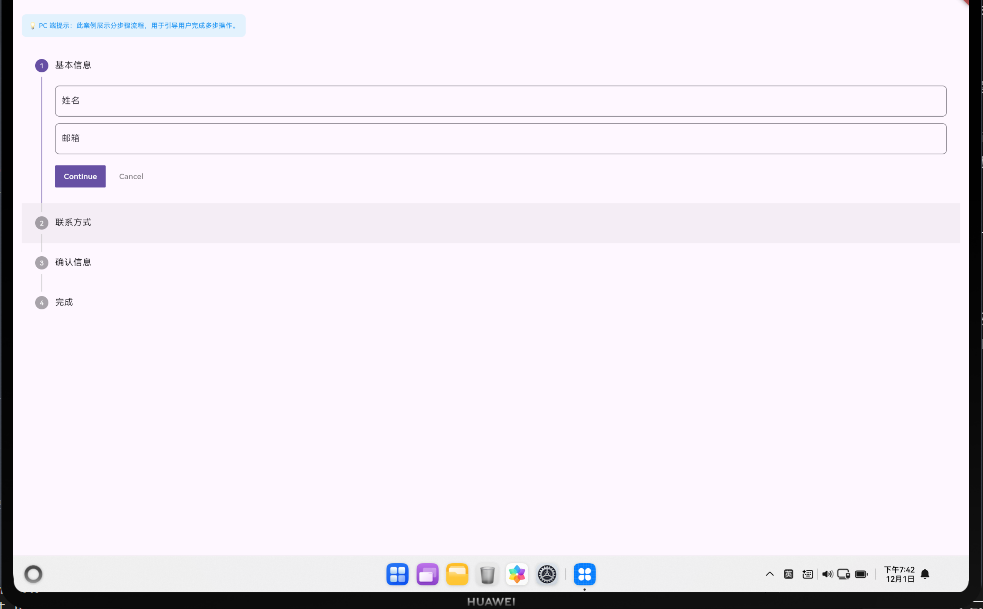
案例概述
本案例展示如何使用 Stepper 创建分步骤流程,引导用户完成多步操作。分步骤流程(也称为向导或多步表单)在用户注册、订单支付、应用设置、数据导入等场景中广泛使用。通过将复杂的操作分解为多个简单的步骤,可以显著降低用户的认知负担,提高任务完成率。
Stepper 组件提供了清晰的步骤指示、导航功能和状态管理。在企业应用中,步骤条需要处理复杂的验证逻辑、数据持久化、错误恢复等问题。此外,还应支持步骤跳过、返回编辑、进度保存等高级功能。
在 PC 端应用中,步骤条需要根据屏幕宽度选择合适的布局方式(水平或竖直),并提供键盘导航和无障碍支持。
核心概念
1. Stepper 组件与布局类型
Stepper 有两种主要布局类型:
- 竖直布局(Vertical):适合移动端和内容较多的场景,步骤从上到下排列
- 水平布局(Horizontal):适合 PC 端和步骤数较少的场景,步骤从左到右排列
2. Step 定义与状态
每个 Step 包含以下属性:
- title:步骤标题,显示在步骤指示器旁边
- subtitle:可选的副标题,提供额外信息
- content:步骤内容,通常包含表单或其他输入控件
- state:步骤状态(indexed、editing、complete、error、disabled)
- isActive:是否为当前活跃步骤
3. 步骤状态与流程控制
步骤流程支持多种控制方式:
- 线性流程:用户必须按顺序完成每个步骤
- 非线性流程:用户可以跳转到任何已访问或已完成的步骤
- 条件流程:根据用户输入动态决定下一步
- 错误处理:当步骤验证失败时显示错误状态
代码详解
1. 基础步骤条实现
创建一个基础的步骤条需要定义步骤列表、管理当前步骤索引,并处理步骤导航事件:
class BasicStepperWidget extends StatefulWidget {
State<BasicStepperWidget> createState() => _BasicStepperWidgetState();
}
class _BasicStepperWidgetState extends State<BasicStepperWidget> {
int _currentStep = 0;
final List<String> _stepTitles = ['基本信息', '地址信息', '确认订单'];
Widget build(BuildContext context) {
return Stepper(
currentStep: _currentStep,
onStepContinue: _handleStepContinue,
onStepCancel: _handleStepCancel,
onStepTapped: (step) => setState(() => _currentStep = step),
steps: [
Step(
title: Text('基本信息'),
subtitle: Text('输入个人信息'),
content: _buildBasicInfoStep(),
isActive: _currentStep >= 0,
),
Step(
title: Text('地址信息'),
subtitle: Text('选择收货地址'),
content: _buildAddressStep(),
isActive: _currentStep >= 1,
),
Step(
title: Text('确认订单'),
subtitle: Text('检查订单信息'),
content: _buildConfirmStep(),
isActive: _currentStep >= 2,
),
],
);
}
void _handleStepContinue() {
if (_currentStep < 2) {
setState(() => _currentStep++);
} else {
_submitForm();
}
}
void _handleStepCancel() {
if (_currentStep > 0) {
setState(() => _currentStep--);
}
}
void _submitForm() {
ScaffoldMessenger.of(context).showSnackBar(
SnackBar(content: Text('表单已提交')),
);
}
Widget _buildBasicInfoStep() {
return Column(
children: [
TextField(decoration: InputDecoration(labelText: '姓名')),
SizedBox(height: 16),
TextField(decoration: InputDecoration(labelText: '邮箱')),
SizedBox(height: 16),
TextField(decoration: InputDecoration(labelText: '电话')),
],
);
}
Widget _buildAddressStep() {
return Column(
children: [
TextField(decoration: InputDecoration(labelText: '省份')),
SizedBox(height: 16),
TextField(decoration: InputDecoration(labelText: '城市')),
SizedBox(height: 16),
TextField(decoration: InputDecoration(labelText: '详细地址')),
],
);
}
Widget _buildConfirmStep() {
return Column(
crossAxisAlignment: CrossAxisAlignment.start,
children: [
Text('订单信息确认', style: TextStyle(fontSize: 16, fontWeight: FontWeight.bold)),
SizedBox(height: 16),
Text('姓名: 张三'),
Text('邮箱: zhangsan@example.com'),
Text('地址: 北京市朝阳区'),
],
);
}
}
2. 带验证的步骤条
为步骤条添加表单验证功能,确保用户输入有效数据:
class ValidatedStepperWidget extends StatefulWidget {
State<ValidatedStepperWidget> createState() => _ValidatedStepperWidgetState();
}
class _ValidatedStepperWidgetState extends State<ValidatedStepperWidget> {
int _currentStep = 0;
final _formKey = GlobalKey<FormState>();
final _nameController = TextEditingController();
final _emailController = TextEditingController();
List<bool> _stepCompleted = [false, false, false];
List<String?> _stepErrors = [null, null, null];
Widget build(BuildContext context) {
return Stepper(
currentStep: _currentStep,
onStepContinue: _handleStepContinue,
onStepCancel: _handleStepCancel,
onStepTapped: (step) {
if (_stepCompleted[step] || step < _currentStep) {
setState(() => _currentStep = step);
}
},
steps: [
Step(
title: Text('基本信息'),
state: _getStepState(0),
content: _buildValidatedForm(),
isActive: _currentStep >= 0,
),
Step(
title: Text('地址信息'),
state: _getStepState(1),
content: Text('地址信息内容'),
isActive: _currentStep >= 1,
),
Step(
title: Text('确认'),
state: _getStepState(2),
content: Text('确认信息'),
isActive: _currentStep >= 2,
),
],
);
}
StepState _getStepState(int step) {
if (_stepErrors[step] != null) {
return StepState.error;
}
if (_stepCompleted[step]) {
return StepState.complete;
}
return StepState.indexed;
}
Widget _buildValidatedForm() {
return Form(
key: _formKey,
child: Column(
children: [
TextFormField(
controller: _nameController,
decoration: InputDecoration(labelText: '姓名'),
validator: (value) {
if (value?.isEmpty ?? true) {
return '请输入姓名';
}
return null;
},
),
SizedBox(height: 16),
TextFormField(
controller: _emailController,
decoration: InputDecoration(labelText: '邮箱'),
validator: (value) {
if (value?.isEmpty ?? true) {
return '请输入邮箱';
}
if (!value!.contains('@')) {
return '邮箱格式不正确';
}
return null;
},
),
if (_stepErrors[_currentStep] != null)
Padding(
padding: EdgeInsets.only(top: 16),
child: Text(
_stepErrors[_currentStep]!,
style: TextStyle(color: Colors.red),
),
),
],
),
);
}
void _handleStepContinue() {
if (_formKey.currentState?.validate() ?? false) {
setState(() {
_stepCompleted[_currentStep] = true;
_stepErrors[_currentStep] = null;
if (_currentStep < 2) {
_currentStep++;
}
});
} else {
setState(() {
_stepErrors[_currentStep] = '请填写所有必填项';
});
}
}
void _handleStepCancel() {
if (_currentStep > 0) {
setState(() => _currentStep--);
}
}
void dispose() {
_nameController.dispose();
_emailController.dispose();
super.dispose();
}
}
3. 响应式步骤条
根据屏幕宽度选择合适的布局方式(水平或竖直):
class ResponsiveStepperWidget extends StatefulWidget {
State<ResponsiveStepperWidget> createState() => _ResponsiveStepperWidgetState();
}
class _ResponsiveStepperWidgetState extends State<ResponsiveStepperWidget> {
int _currentStep = 0;
Widget build(BuildContext context) {
final screenWidth = MediaQuery.of(context).size.width;
final isWideScreen = screenWidth > 1200;
return Stepper(
type: isWideScreen ? StepperType.horizontal : StepperType.vertical,
currentStep: _currentStep,
onStepContinue: () {
if (_currentStep < 2) {
setState(() => _currentStep++);
}
},
onStepCancel: () {
if (_currentStep > 0) {
setState(() => _currentStep--);
}
},
steps: [
Step(
title: Text('步骤1'),
content: _buildStepContent('这是第一步的内容'),
isActive: _currentStep >= 0,
),
Step(
title: Text('步骤2'),
content: _buildStepContent('这是第二步的内容'),
isActive: _currentStep >= 1,
),
Step(
title: Text('步骤3'),
content: _buildStepContent('这是第三步的内容'),
isActive: _currentStep >= 2,
),
],
);
}
Widget _buildStepContent(String content) {
return Padding(
padding: EdgeInsets.symmetric(vertical: 16),
child: Text(content),
);
}
}
高级话题:步骤条的企业级应用
1. 动态/响应式设计与多屏幕适配
class AdaptiveStepperManager {
  static const double MOBILE_WIDTH = 600;
  static const double TABLET_WIDTH = 1200;

  static StepperType getStepperType(BuildContext context) {
    final width = MediaQuery.of(context).size.width;
    if (width < TABLET_WIDTH) return StepperType.vertical;
    return StepperType.horizontal;
  }

  static EdgeInsets getContentPadding(BuildContext context) {
    final width = MediaQuery.of(context).size.width;
    if (width < MOBILE_WIDTH) return EdgeInsets.all(8);
    if (width < TABLET_WIDTH) return EdgeInsets.all(16);
    return EdgeInsets.all(24);
  }
}
2. 动画与过渡效果
class AnimatedStepperWidget extends StatefulWidget {
State<AnimatedStepperWidget> createState() => _AnimatedStepperWidgetState();
}
class _AnimatedStepperWidgetState extends State<AnimatedStepperWidget>
with SingleTickerProviderStateMixin {
int _currentStep = 0;
late AnimationController _controller;
late Animation<double> _slideAnimation;
void initState() {
super.initState();
_controller = AnimationController(
duration: Duration(milliseconds: 300),
vsync: this,
);
_setupAnimation();
}
void _setupAnimation() {
_slideAnimation = Tween<double>(begin: 100, end: 0).animate(
CurvedAnimation(parent: _controller, curve: Curves.easeOut),
);
}
void dispose() {
_controller.dispose();
super.dispose();
}
Widget build(BuildContext context) {
return Stepper(
currentStep: _currentStep,
onStepContinue: () {
_controller.forward(from: 0);
setState(() => _currentStep++);
},
steps: [
Step(
title: Text('步骤1'),
content: SlideTransition(
position: Tween<Offset>(
begin: Offset(_slideAnimation.value / 100, 0),
end: Offset.zero,
).animate(_controller),
child: Text('内容1'),
),
),
],
);
}
}
3. 搜索/过滤/排序功能
class StepperDataManager {
  List<StepData> _allSteps;
  List<StepData> _filteredSteps;

  String _searchQuery = '';
  String _filterStatus = '';

  StepperDataManager(this._allSteps) : _filteredSteps = _allSteps;

  void setSearchQuery(String query) {
    _searchQuery = query;
    _applyFilters();
  }

  void setStatusFilter(String status) {
    _filterStatus = status;
    _applyFilters();
  }

  void _applyFilters() {
    _filteredSteps = _allSteps.where((step) {
      final matchesSearch = _searchQuery.isEmpty ||
          step.title.toLowerCase().contains(_searchQuery.toLowerCase());

      final matchesFilter = _filterStatus.isEmpty || step.status == _filterStatus;

      return matchesSearch && matchesFilter;
    }).toList();
  }

  List<StepData> get filteredSteps => _filteredSteps;
}

class StepData {
  final String id;
  final String title;
  final String status;

  StepData({required this.id, required this.title, required this.status});
}
4. 选择与批量操作
class MultiSelectStepperWidget extends StatefulWidget {
State<MultiSelectStepperWidget> createState() => _MultiSelectStepperWidgetState();
}
class _MultiSelectStepperWidgetState extends State<MultiSelectStepperWidget> {
int _currentStep = 0;
final Set<int> _selectedSteps = {};
void _toggleStepSelection(int step) {
setState(() {
if (_selectedSteps.contains(step)) {
_selectedSteps.remove(step);
} else {
_selectedSteps.add(step);
}
});
}
Widget build(BuildContext context) {
return Column(
children: [
if (_selectedSteps.isNotEmpty)
Container(
padding: EdgeInsets.all(16),
color: Colors.blue.shade50,
child: Row(
mainAxisAlignment: MainAxisAlignment.spaceBetween,
children: [
Text('已选择 ${_selectedSteps.length} 个步骤'),
ElevatedButton(
onPressed: () => print('批量操作'),
child: Text('批量操作'),
),
],
),
),
Expanded(
child: Stepper(
currentStep: _currentStep,
steps: List.generate(3, (index) {
return Step(
title: Row(
children: [
Checkbox(
value: _selectedSteps.contains(index),
onChanged: (_) => _toggleStepSelection(index),
),
Text('步骤 ${index + 1}'),
],
),
content: Text('内容 ${index + 1}'),
);
}),
),
),
],
);
}
}
5. 加载与缓存策略
class StepperDataCache {
  Map<int, Map<String, dynamic>> _cache = {};
  bool _isLoading = false;

  Future<void> loadStepData(int step) async {
    if (_cache.containsKey(step)) {
      return;
    }

    _isLoading = true;
    try {
      await Future.delayed(Duration(milliseconds: 500));
      _cache[step] = {
        'title': '步骤 $step',
        'data': 'Step data for step $step',
      };
    } finally {
      _isLoading = false;
    }
  }

  Map<String, dynamic>? getStepData(int step) {
    return _cache[step];
  }

  void clearCache() {
    _cache.clear();
  }

  bool get isLoading => _isLoading;
}
6. 键盘导航与快捷键
class KeyboardNavigableStepper extends StatefulWidget {
State<KeyboardNavigableStepper> createState() => _KeyboardNavigableStepperState();
}
class _KeyboardNavigableStepperState extends State<KeyboardNavigableStepper> {
int _currentStep = 0;
late FocusNode _focusNode;
void initState() {
super.initState();
_focusNode = FocusNode();
}
void dispose() {
_focusNode.dispose();
super.dispose();
}
void _handleKeyEvent(RawKeyEvent event) {
if (event.isKeyPressed(LogicalKeyboardKey.arrowRight)) {
if (_currentStep < 2) {
setState(() => _currentStep++);
}
} else if (event.isKeyPressed(LogicalKeyboardKey.arrowLeft)) {
if (_currentStep > 0) {
setState(() => _currentStep--);
}
} else if (event.isKeyPressed(LogicalKeyboardKey.enter)) {
print('确认步骤 $_currentStep');
}
}
Widget build(BuildContext context) {
return RawKeyboardListener(
focusNode: _focusNode,
onKey: _handleKeyEvent,
child: Stepper(
currentStep: _currentStep,
steps: [
Step(title: Text('步骤1'), content: Text('内容1')),
Step(title: Text('步骤2'), content: Text('内容2')),
Step(title: Text('步骤3'), content: Text('内容3')),
],
),
);
}
}
7. 无障碍支持与屏幕阅读器
class AccessibleStepperWidget extends StatelessWidget {
Widget build(BuildContext context) {
return Stepper(
steps: [
Step(
title: Semantics(
label: '第一步:基本信息',
enabled: true,
button: true,
child: Text('基本信息'),
),
content: Semantics(
label: '请输入您的基本信息',
child: Column(
children: [
TextField(
decoration: InputDecoration(labelText: '姓名'),
semanticLabel: '姓名输入框',
),
TextField(
decoration: InputDecoration(labelText: '邮箱'),
semanticLabel: '邮箱输入框',
),
],
),
),
),
],
);
}
}
8. 样式自定义与主题适配
class StepperTheme {
final Color activeColor;
final Color inactiveColor;
final Color errorColor;
final TextStyle titleStyle;
final TextStyle contentStyle;
const StepperTheme({
this.activeColor = Colors.blue,
this.inactiveColor = Colors.grey,
this.errorColor = Colors.red,
this.titleStyle = const TextStyle(fontSize: 16, fontWeight: FontWeight.bold),
this.contentStyle = const TextStyle(fontSize: 14),
});
static StepperTheme light() {
return StepperTheme(
activeColor: Colors.blue,
inactiveColor: Colors.grey.shade300,
errorColor: Colors.red,
);
}
static StepperTheme dark() {
return StepperTheme(
activeColor: Colors.blue.shade300,
inactiveColor: Colors.grey.shade700,
errorColor: Colors.red.shade300,
);
}
}
class ThemedStepperWidget extends StatelessWidget {
final StepperTheme theme;
const ThemedStepperWidget({required this.theme});
Widget build(BuildContext context) {
return Stepper(
steps: [
Step(
title: Text('步骤1', style: theme.titleStyle),
content: Text('内容1', style: theme.contentStyle),
),
],
);
}
}
9. 数据持久化与导出
class StepperDataExporter {
  static String exportToJSON(Map<int, Map<String, dynamic>> stepData) {
    final jsonData = stepData.map((key, value) => MapEntry(
      key.toString(),
      value,
    ));
    return jsonEncode(jsonData);
  }

  static Future<void> saveToFile(String filename, String content) async {
    final directory = await getApplicationDocumentsDirectory();
    final file = File('${directory.path}/$filename');
    await file.writeAsString(content);
  }

  static Future<String?> loadFromFile(String filename) async {
    try {
      final directory = await getApplicationDocumentsDirectory();
      final file = File('${directory.path}/$filename');
      return await file.readAsString();
    } catch (e) {
      return null;
    }
  }
}
10. 单元测试与集成测试
void main() {
  group('Stepper Tests', () {
    test('步骤导航', () {
      int currentStep = 0;
      expect(currentStep, 0);
      currentStep = 1;
      expect(currentStep, 1);
    });

    test('步骤验证', () {
      final form = {'name': '张三', 'email': 'zhangsan@example.com'};
      expect(form['name'], isNotEmpty);
      expect(form['email'], contains('@'));
    });

    test('步骤数据保存', () {
      final stepData = <int, Map<String, String>>{};
      stepData[0] = {'name': '张三'};
      expect(stepData[0]?['name'], '张三');
    });
  });

  testWidgets('Stepper Widget 集成测试', (WidgetTester tester) async {
    await tester.pumpWidget(
      MaterialApp(
        home: Scaffold(
          body: BasicStepperWidget(),
        ),
      ),
    );

    expect(find.text('基本信息'), findsOneWidget);
    expect(find.text('地址信息'), findsOneWidget);
  });
}
OpenHarmony PC 端适配要点
- 布局选择:根据屏幕宽度选择水平或竖直布局
- 响应式设计:在 PC 端采用水平布局充分利用屏幕空间
- 键盘导航:支持方向键、Tab、Enter 等快捷键
- 鼠标交互:支持点击步骤直接跳转
- 无障碍支持:为屏幕阅读器提供完整的语义标签
实际应用场景
- 用户注册:多步骤注册流程
- 订单支付:支付流程向导
- 应用设置:初始化设置向导
- 数据导入:多步骤数据导入流程
- 问卷调查:分页问卷
扩展建议
- 支持步骤跳过和返回编辑
- 实现进度保存和恢复
- 添加步骤预览功能
- 支持条件步骤显示
- 实现步骤间的数据共享
总结
步骤条是引导用户完成复杂任务的有效工具。通过合理的设计和实现,可以创建出功能完整、用户体验良好的步骤条系统。在 PC 端应用中,选择合适的布局、提供键盘导航和无障碍支持是关键。
欢迎加入开源鸿蒙跨平台社区:https://openharmonycrossplatform.csdn.net

社区规范:仅讨论OpenHarmony相关问题。
更多推荐
 7
7 0
0- 0


 已为社区贡献14条内容

所有评论(0)