Electron for OpenHarmony 实战:Card 卡片组件实现 PC适配
本文介绍了在Electron for OpenHarmony项目中使用Card卡片组件的方法。Card卡片通过边框、圆角、阴影将内容聚合展示,具有信息聚合清晰、边界明确、布局灵活等特点。文章详细讲解了基础卡片结构、简单卡片、阴影效果控制(always/hover/never)等核心功能,并提供了卡片列表布局、图片卡片和可折叠卡片等实用场景的实现代码示例。通过CSS Grid实现自适应网格布局,结合
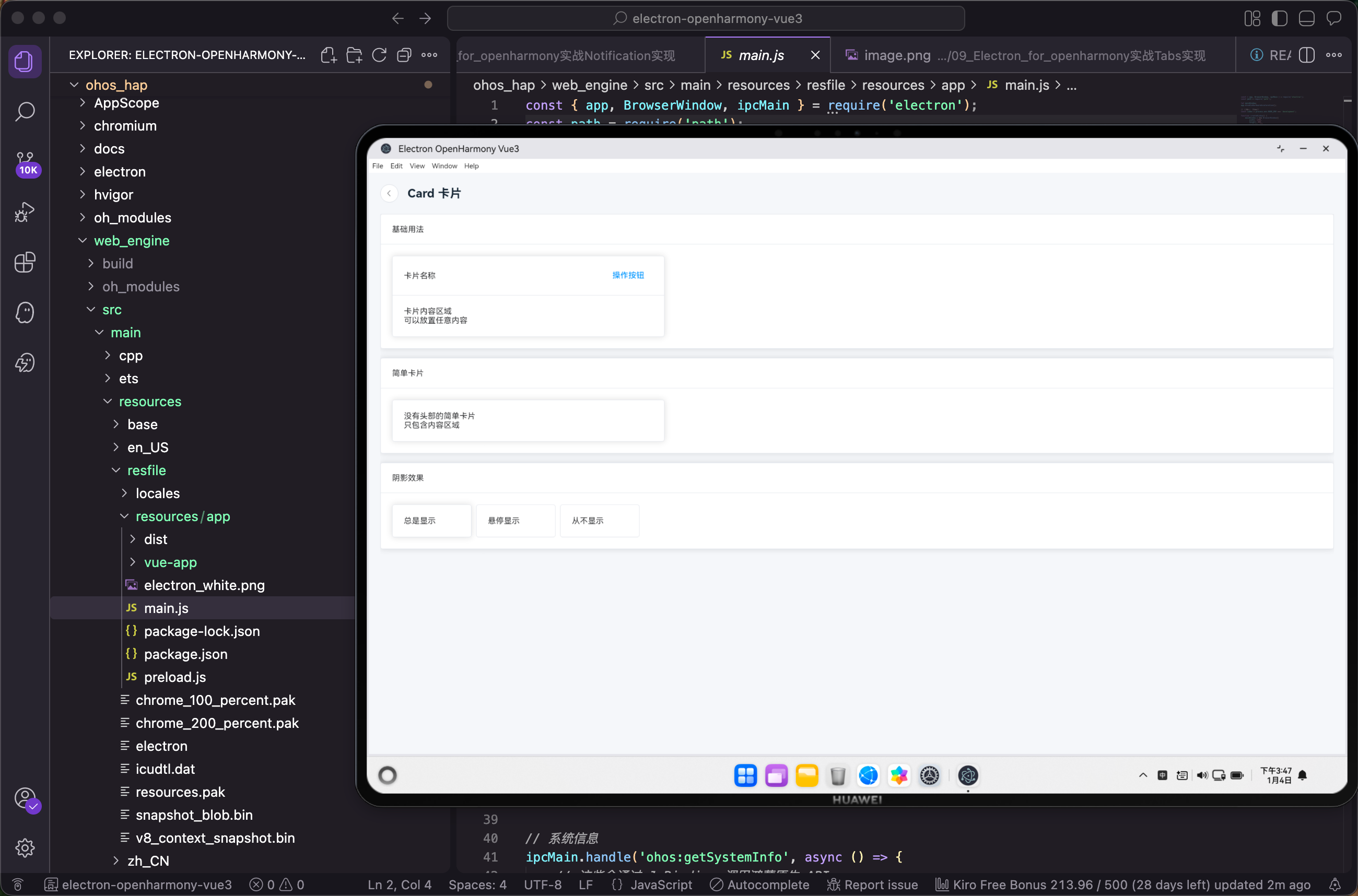
信息展示是应用的核心功能之一,把相关的信息聚合在一个容器里展示,用户看起来更清晰。Card 卡片组件就是这样一个容器,它有边框、圆角、阴影,能把内容和背景区分开来。这篇文章来聊聊在 Electron for OpenHarmony 项目中如何使用 Card 卡片组件。
Card 的设计理念
卡片式设计在现代 UI 中非常流行,从手机应用到网页,到处都能看到卡片的身影。卡片的好处是:
把相关信息聚合在一起,形成一个独立的信息单元;有明确的边界,和其他内容区分开;可以自由组合排列,适应不同的布局需求;交互友好,整个卡片都可以点击。
Element Plus 的 el-card 组件提供了一个简洁的卡片容器,支持头部、内容区域和多种阴影效果。
基础卡片结构
一个完整的卡片包含头部和内容区域:
<script setup lang="ts">
import { useRouter } from 'vue-router'
const router = useRouter()
</script>

<template>
  <el-card class="demo-card">
    <template #header>基础用法</template>
    <el-card style="max-width: 480px">
      <template #header>
        <div style="display: flex; justify-content: space-between; align-items: center;">
          <span>卡片名称</span>
          <el-button type="primary" text>操作按钮</el-button>
        </div>
      </template>
      <p>卡片内容区域</p>
      <p>可以放置任意内容</p>
    </el-card>
  </el-card>
</template>
#header 插槽定义卡片头部,可以放标题、操作按钮等。头部和内容区域之间有一条分割线。卡片内部直接写的内容会显示在内容区域。
头部的布局用 flex 实现左右分布,左边是标题,右边是操作按钮。text 类型的按钮没有背景和边框,适合放在卡片头部这种空间有限的地方。
简单卡片
不需要头部的时候,直接写内容就行:
<el-card class="demo-card">
  <template #header>简单卡片</template>
  <el-card style="max-width: 480px">
    <p>没有头部的简单卡片</p>
    <p>只包含内容区域</p>
  </el-card>
</el-card>
没有 #header 插槽的卡片就是一个简单的内容容器,没有分割线,整个卡片都是内容区域。这种卡片适合展示简短的信息或者作为布局容器使用。
阴影效果
卡片的阴影可以控制什么时候显示:
<el-card class="demo-card">
  <template #header>阴影效果</template>
  <el-space wrap>
    <el-card shadow="always" style="width: 140px">总是显示</el-card>
    <el-card shadow="hover" style="width: 140px">悬停显示</el-card>
    <el-card shadow="never" style="width: 140px">从不显示</el-card>
  </el-space>
</el-card>
shadow 属性控制阴影的显示时机:
always:总是显示阴影,这是默认值hover:鼠标悬停时才显示阴影,有交互感never:从不显示阴影,卡片看起来更扁平
hover 效果在卡片列表中很常用,鼠标移上去卡片会"浮起来",暗示这个卡片可以点击。
卡片列表布局
卡片经常用来做列表展示,比如商品列表、文章列表:
<script setup lang="ts">
import { ref } from 'vue'

const items = ref([
  { id: 1, title: '文章标题一', desc: '这是文章的简介内容,可以是摘要或者描述信息。', date: '2024-01-15' },
  { id: 2, title: '文章标题二', desc: '这是另一篇文章的简介内容,展示卡片列表的效果。', date: '2024-01-14' },
  { id: 3, title: '文章标题三', desc: '第三篇文章的简介,卡片可以承载各种类型的内容。', date: '2024-01-13' },
])

const handleClick = (item: any) => {
  console.log('点击了:', item.title)
}
</script>

<template>
  <div style="display: grid; grid-template-columns: repeat(auto-fill, minmax(280px, 1fr)); gap: 16px;">
    <el-card
      v-for="item in items"
      :key="item.id"
      shadow="hover"
      style="cursor: pointer;"
      @click="handleClick(item)"
    >
      <template #header>
        <div style="display: flex; justify-content: space-between; align-items: center;">
          <span style="font-weight: bold;">{{ item.title }}</span>
          <span style="color: #909399; font-size: 12px;">{{ item.date }}</span>
        </div>
      </template>
      <p style="color: #606266; line-height: 1.6;">{{ item.desc }}</p>
    </el-card>
  </div>
</template>
用 CSS Grid 实现自适应的卡片网格布局,grid-template-columns: repeat(auto-fill, minmax(280px, 1fr)) 让卡片自动填充,每个卡片最小 280px,剩余空间平均分配。
shadow="hover" 让卡片在悬停时显示阴影,配合 cursor: pointer 提示用户这个卡片可以点击。
图片卡片
卡片里放图片是很常见的需求:
<script setup lang="ts">
const products = [
  { id: 1, name: '商品名称', price: 99.00, image: 'https://via.placeholder.com/300x200' },
  { id: 2, name: '另一个商品', price: 199.00, image: 'https://via.placeholder.com/300x200' },
]
</script>

<template>
  <div style="display: flex; gap: 16px; flex-wrap: wrap;">
    <el-card v-for="product in products" :key="product.id" style="width: 240px;" shadow="hover" :body-style="{ padding: '0' }">
      <img :src="product.image" style="width: 100%; height: 160px; object-fit: cover;" />
      <div style="padding: 14px;">
        <p style="margin: 0 0 8px; font-size: 16px;">{{ product.name }}</p>
        <p style="margin: 0; color: #f56c6c; font-size: 18px; font-weight: bold;">¥{{ product.price }}</p>
        <el-button type="primary" size="small" style="margin-top: 12px; width: 100%;">加入购物车</el-button>
      </div>
    </el-card>
  </div>
</template>
:body-style="{ padding: '0' }" 去掉内容区域的默认内边距,让图片可以贴边显示。图片下方的信息区域自己加 padding 控制间距。
object-fit: cover 让图片保持比例填充容器,不会变形。
可折叠卡片
有时候卡片内容很长,需要折叠起来:
<script setup lang="ts">
import { ref } from 'vue'

const expanded = ref(false)
</script>

<template>
  <el-card style="max-width: 480px;">
    <template #header>
      <div style="display: flex; justify-content: space-between; align-items: center;">
        <span>可折叠卡片</span>
        <el-button type="primary" text @click="expanded = !expanded">
          {{ expanded ? '收起' : '展开' }}
        </el-button>
      </div>
    </template>
    <div>
      <p>这是始终显示的内容。</p>
      <div v-show="expanded" style="margin-top: 12px; padding-top: 12px; border-top: 1px solid #ebeef5;">
        <p>这是展开后才显示的详细内容。</p>
        <p>可以放更多的信息在这里。</p>
        <p>用户点击展开按钮才能看到。</p>
      </div>
    </div>
  </el-card>
</template>
用 v-show 控制详细内容的显示隐藏,比 v-if 性能更好,因为 DOM 元素不会被销毁重建。头部的按钮文字根据展开状态动态变化。
加载状态
卡片内容在加载时可以显示骨架屏或 loading:
<script setup lang="ts">
import { ref } from 'vue'

const loading = ref(true)
const data = ref<any>(null)

// 模拟加载数据
setTimeout(() => {
  data.value = {
    title: '加载完成的标题',
    content: '这是加载完成后显示的内容。'
  }
  loading.value = false
}, 2000)
</script>

<template>
  <el-card style="max-width: 480px;" v-loading="loading">
    <template #header>
      <span>{{ data?.title || '加载中...' }}</span>
    </template>
    <p v-if="data">{{ data.content }}</p>
    <p v-else style="color: #909399;">正在加载数据...</p>
  </el-card>
</template>
v-loading 指令在卡片上显示加载遮罩,数据加载完成后自动消失。这是 Element Plus 提供的全局指令,任何元素都可以用。
卡片组
多个相关的卡片可以组合在一起:
<script setup lang="ts">
const stats = [
  { label: '总用户', value: '12,345', icon: 'User', color: '#409eff' },
  { label: '今日订单', value: '256', icon: 'ShoppingCart', color: '#67c23a' },
  { label: '待处理', value: '18', icon: 'Bell', color: '#e6a23c' },
  { label: '总收入', value: '¥89,012', icon: 'Money', color: '#f56c6c' },
]
</script>

<template>
  <div style="display: grid; grid-template-columns: repeat(4, 1fr); gap: 16px;">
    <el-card v-for="stat in stats" :key="stat.label" shadow="hover">
      <div style="display: flex; align-items: center; gap: 16px;">
        <div :style="{
          width: '48px',
          height: '48px',
          borderRadius: '8px',
          backgroundColor: stat.color + '20',
          display: 'flex',
          alignItems: 'center',
          justifyContent: 'center'
        }">
          <el-icon :size="24" :style="{ color: stat.color }">
            <component :is="stat.icon" />
          </el-icon>
        </div>
        <div>
          <p style="margin: 0; color: #909399; font-size: 14px;">{{ stat.label }}</p>
          <p style="margin: 4px 0 0; font-size: 24px; font-weight: bold;">{{ stat.value }}</p>
        </div>
      </div>
    </el-card>
  </div>
</template>
这是一个常见的数据统计卡片组,每个卡片展示一个指标。图标用不同的颜色区分,背景色是主色的浅色版本(加了 20% 透明度)。
与鸿蒙原生能力结合
在 Electron for OpenHarmony 项目中,卡片可以和原生能力配合使用:
<script setup lang="ts">
import { ref } from 'vue'
import { useOhos } from '@/composables/useOhos'
import { ElMessage } from 'element-plus'

const { openFile, showNotification, clipboard } = useOhos()

const files = ref([
  { name: '文档.docx', size: '2.5 MB', type: 'document' },
  { name: '图片.png', size: '1.2 MB', type: 'image' },
  { name: '视频.mp4', size: '15.8 MB', type: 'video' },
])

const handleOpen = async (file: any) => {
  await showNotification('打开文件', `正在打开: ${file.name}`)
  ElMessage.success(`打开文件: ${file.name}`)
}

const handleCopyName = async (file: any) => {
  await clipboard.write(file.name)
  ElMessage.success('文件名已复制')
}

const handleAddFile = async () => {
  const selectedFiles = await openFile({
    title: '选择文件',
    filters: [{ name: '所有文件', extensions: ['*'] }]
  })
  if (selectedFiles && selectedFiles.length > 0) {
    ElMessage.success(`已选择: ${selectedFiles[0]}`)
  }
}
</script>

<template>
  <div>
    <el-button type="primary" @click="handleAddFile" style="margin-bottom: 16px;">
      添加文件
    </el-button>

    <div style="display: flex; flex-direction: column; gap: 12px;">
      <el-card v-for="file in files" :key="file.name" shadow="hover">
        <div style="display: flex; justify-content: space-between; align-items: center;">
          <div style="display: flex; align-items: center; gap: 12px;">
            <el-icon :size="32" style="color: #409eff;">
              <Document />
            </el-icon>
            <div>
              <p style="margin: 0; font-weight: 500;">{{ file.name }}</p>
              <p style="margin: 4px 0 0; font-size: 12px; color: #909399;">{{ file.size }}</p>
            </div>
          </div>
          <el-space>
            <el-button size="small" @click="handleCopyName(file)">复制名称</el-button>
            <el-button type="primary" size="small" @click="handleOpen(file)">打开</el-button>
          </el-space>
        </div>
      </el-card>
    </div>
  </div>
</template>
这个例子展示了文件管理场景:点击添加文件按钮调用原生文件选择器;点击打开按钮发送系统通知并显示消息提示;点击复制名称按钮把文件名写入剪贴板。卡片作为文件信息的容器,每个文件一张卡片,结构清晰。
自定义卡片样式
Card 的样式可以通过 CSS 变量和属性调整:
<template>
  <el-card
    style="
      --el-card-border-color: #409eff;
      --el-card-border-radius: 12px;
      --el-card-padding: 24px;
    "
    :body-style="{
      background: 'linear-gradient(135deg, #667eea 0%, #764ba2 100%)',
      color: '#fff'
    }"
  >
    <h3 style="margin: 0 0 12px;">自定义样式卡片</h3>
    <p style="margin: 0; opacity: 0.9;">通过 CSS 变量和 body-style 可以实现各种自定义效果。</p>
  </el-card>
</template>
CSS 变量可以调整边框颜色、圆角、内边距等,:body-style 可以直接设置内容区域的样式,包括背景渐变、文字颜色等。
响应式卡片
在不同屏幕尺寸下调整卡片布局:
<template>
  <div class="card-grid">
    <el-card v-for="i in 6" :key="i" shadow="hover">
      <p>卡片 {{ i }}</p>
    </el-card>
  </div>
</template>

<style scoped>
.card-grid {
  display: grid;
  gap: 16px;
  grid-template-columns: repeat(1, 1fr);
}

@media (min-width: 640px) {
  .card-grid {
    grid-template-columns: repeat(2, 1fr);
  }
}

@media (min-width: 1024px) {
  .card-grid {
    grid-template-columns: repeat(3, 1fr);
  }
}
</style>
用媒体查询在不同屏幕宽度下显示不同的列数:小屏幕一列,中等屏幕两列,大屏幕三列。这样卡片在各种设备上都能有好的展示效果。
小结
Card 卡片是信息展示的基础容器组件,这篇文章介绍了它的各种用法:基础结构、简单卡片、阴影效果、卡片列表、图片卡片、可折叠卡片、加载状态、卡片组,以及与鸿蒙原生能力的结合。卡片的核心是把相关信息聚合在一个有边界的容器里,通过头部插槽和内容区域组织信息,通过阴影效果增加层次感。合理使用卡片可以让页面信息结构更清晰,用户体验更好。
欢迎加入开源鸿蒙PC社区:https://harmonypc.csdn.net/

社区规范:仅讨论OpenHarmony相关问题。
更多推荐
 5
5 0
0- 0


 已为社区贡献15条内容

所有评论(0)