0 基础入门React Native鸿蒙跨平台开发:Share社交分享功能组件
本文介绍了React Native中使用react-native-share库实现社交分享功能的方法。核心内容包括三种分享方式:Share.share()调用系统分享面板,Share.shareSingle()直接分享到指定平台,以及功能更强大的Share.open()方法。文章提供了详细的代码示例,展示了基础分享、定向分享到Instagram等场景的实现,并解释了关键参数如message、url
Share
关于 React Native 中 Share 功能的详细解析,主要基于社区广泛使用的 react-native-share 库。
核心模块与方法
React Native 的分享功能主要通过 react-native-share 这个第三方库来实现,它提供了比原生 Share 模块更强大和灵活的功能。该库的核心方法包括:
Share.share():这是最基础的方法,会弹出系统的分享面板(Action Sheet),让用户从所有已安装的应用中选择一个进行分享。Share.shareSingle():这是react-native-share库提供的高级方法,允许你直接指定目标社交平台(如微信、Instagram、Facebook等),而无需用户从系统面板中选择。这非常适合需要引导用户到特定平台的场景。Share.open():这是另一个强大的方法,功能与shareSingle类似,但提供了更丰富的配置选项,是shareSingle的超集。
详细使用示例
- 基础使用:
Share.share()
这是最通用的分享方式,兼容性最好。
import Share from 'react-native-share';

const handleShare = async () => {
  try {
    const result = await Share.share({
      message: '这是要分享的文本内容',
      title: '分享标题',
      url: 'https://www.baidu.com', // 在 iOS 上,此参数会优先于 message 显示
    }, {
      dialogTitle: '分享到', // Android 上自定义分享面板标题
      excludedActivityTypes: [ // iOS 上排除某些分享选项(如微信朋友圈)
        'com.tencent.xin.sharetimeline',
        'com.apple.UIKit.activity.PostToWeibo'
      ],
      tintColor: '007AFF' // iOS 上自定义面板主题色
    });

    if (result.action === Share.sharedAction) {
      if (result.activityType) {
        console.log('分享成功到平台:', result.activityType);
      } else {
        console.log('分享成功');
      }
    } else if (result.action === Share.dismissedAction) {
      console.log('用户取消了分享');
    }
  } catch (error) {
    console.log('分享失败:', error.message);
  }
};
- 高级使用:
Share.shareSingle()与Share.open()
这两种方法允许你直接指定分享目标,配置更灵活。
基本调用:
import Share from 'react-native-share';

// 使用 shareSingle
const shareToInstagram = async () => {
  const shareOptions = {
    url: 'https://example.com/image.jpg',
    social: Share.Social.INSTAGRAM, // 指定目标平台
    // 其他参数...
  };

  try {
    const response = await Share.shareSingle(shareOptions);
    console.log('分享结果:', response);
  } catch (error) {
    if (error.message.includes('User did not share')) {
      console.log('用户取消分享');
    } else {
      console.error('分享出错:', error);
    }
  }
};

// 使用 open(功能更全面)
const shareWithOpen = async () => {
  const options = {
    message: '分享内容',
    urls: ['https://example.com/file1.pdf', 'https://example.com/file2.jpg'],
    filenames: ['file1.pdf', 'file2.jpg'],
    type: 'application/pdf', // 或 'image/*' 等
    social: Share.Social.EMAIL, // 直接打开邮件客户端
    // Android 特有选项
    useInternalStorage: true,
    showAppsToView: true,
    // iOS 特有选项
    saveToFiles: true,
    activityItemSources: [/* ... */]
  };

  try {
    const result = await Share.open(options);
    if (result.dismissedAction) {
      console.log('用户取消');
    } else {
      console.log('分享成功:', result);
    }
  } catch (error) {
    console.error('分享异常:', error);
  }
};
主要参数详解:
message: 分享的文本内容。url/urls: 要分享的链接或文件列表。urls支持分享多个文件。social: 关键参数,指定目标社交平台,如Share.Social.MESSAGING_APP(消息应用)、Share.Social.INSTAGRAM、Share.Social.FACEBOOK等。
实际案例演示:
import React from 'react';
import { Share, View, Button } from 'react-native';

const ShareExample = () => {
  const onShare = async () => {
    try {
      const result = await Share.share({
        message:
          'React Native | A framework for building native apps using React',
      });
      if (result.action === Share.sharedAction) {
        if (result.activityType) {
          // shared with activity type of result.activityType
        } else {
          // shared
        }
      } else if (result.action === Share.dismissedAction) {
        // dismissed
      }
    } catch (error) {
      alert(error.message);
    }
  };
  return (
    <View style={{ marginTop: 50 }}>
      <Button onPress={onShare} title="Share" />
    </View>
  );
};

export default ShareExample;
这段React Native代码实现了一个社交分享功能组件,其核心原理是利用React Native的Share API来调用设备原生的分享界面。代码构建了一个简单的分享按钮,当用户点击时会触发设备的标准分享对话框,允许用户通过消息、邮件、社交媒体等各种渠道分享内容。
在组件结构方面,代码定义了一个名为ShareExample的函数组件,这个组件内部声明了一个异步函数onShare来处理分享操作。当用户点击按钮时,onShare函数会被调用,它通过Share.share方法启动分享流程。这个方法接收一个配置对象,其中message属性定义了要分享的文本内容。
在onShare函数中,代码使用了try-catch错误处理机制来确保分享过程的稳定性。在try块内部,通过await关键字等待Share.share方法的执行结果,这个方法会返回一个包含分享操作信息的result对象。
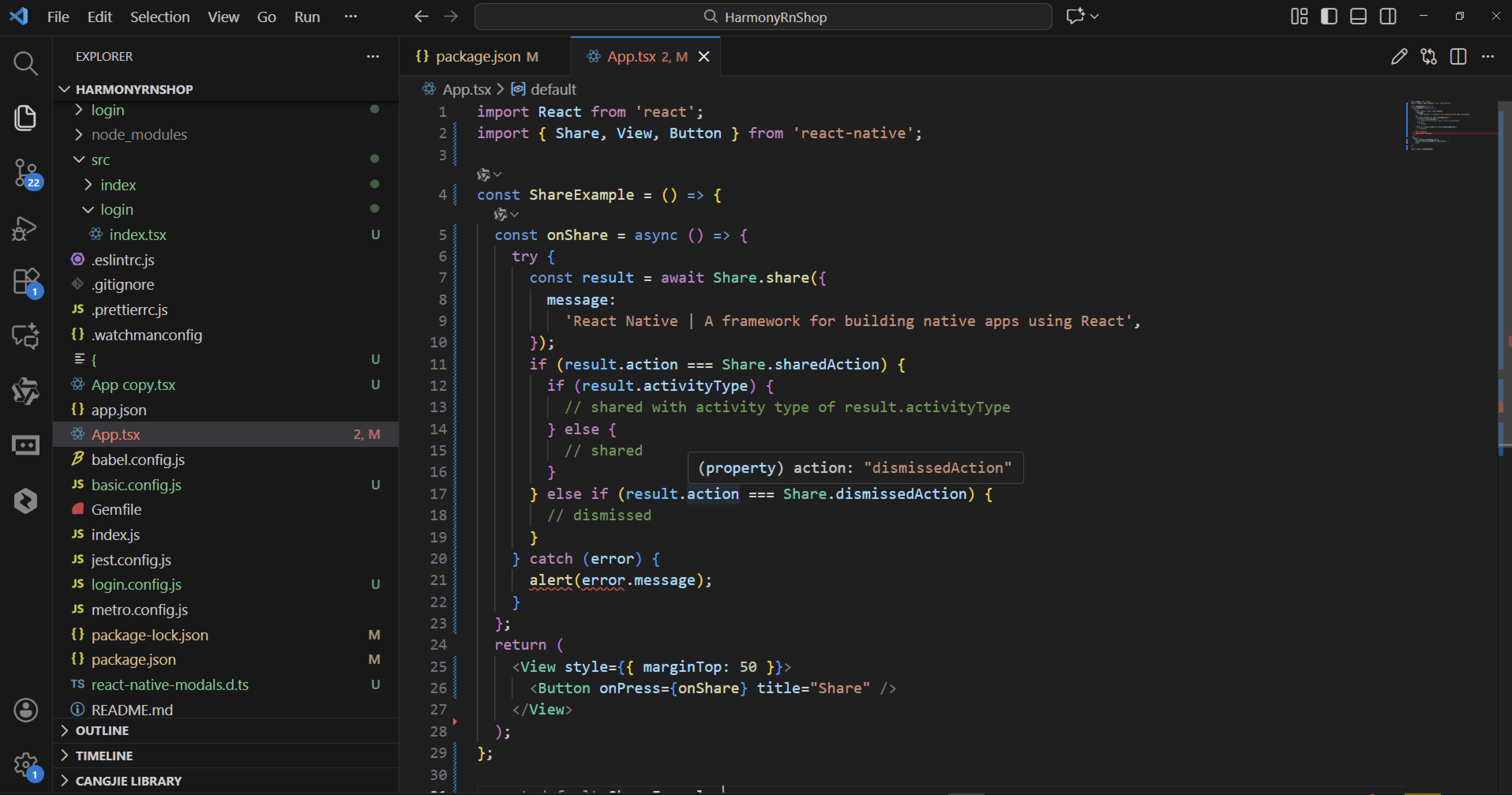
代码通过条件判断来区分不同的分享结果。如果result.action等于Share.sharedAction,表示内容已成功分享,此时可以进一步检查result.activityType来确定是通过哪个具体的应用或服务进行的分享。如果用户取消了分享操作,result.action会等于Share.dismissedAction,这时可以执行相应的处理逻辑。
分享功能的实现依赖于React Native的桥接机制,它将JavaScript代码中的Share.share调用转换为对iOS和Android原生分享API的调用。这种设计使得应用能够充分利用设备平台的原生功能,同时保持跨平台代码的一致性。
整个组件的设计体现了React函数式组件的简洁性和声明式编程的特点。通过Button组件的onPress属性绑定onShare函数,创建了直观的用户交互界面。当分享操作完成或被取消时,用户会得到相应的视觉反馈,这种即时反馈机制提升了应用的用户体验。
打包
接下来通过打包命令npn run harmony将reactNative的代码打包成为bundle,这样可以进行在开源鸿蒙OpenHarmony中进行使用。
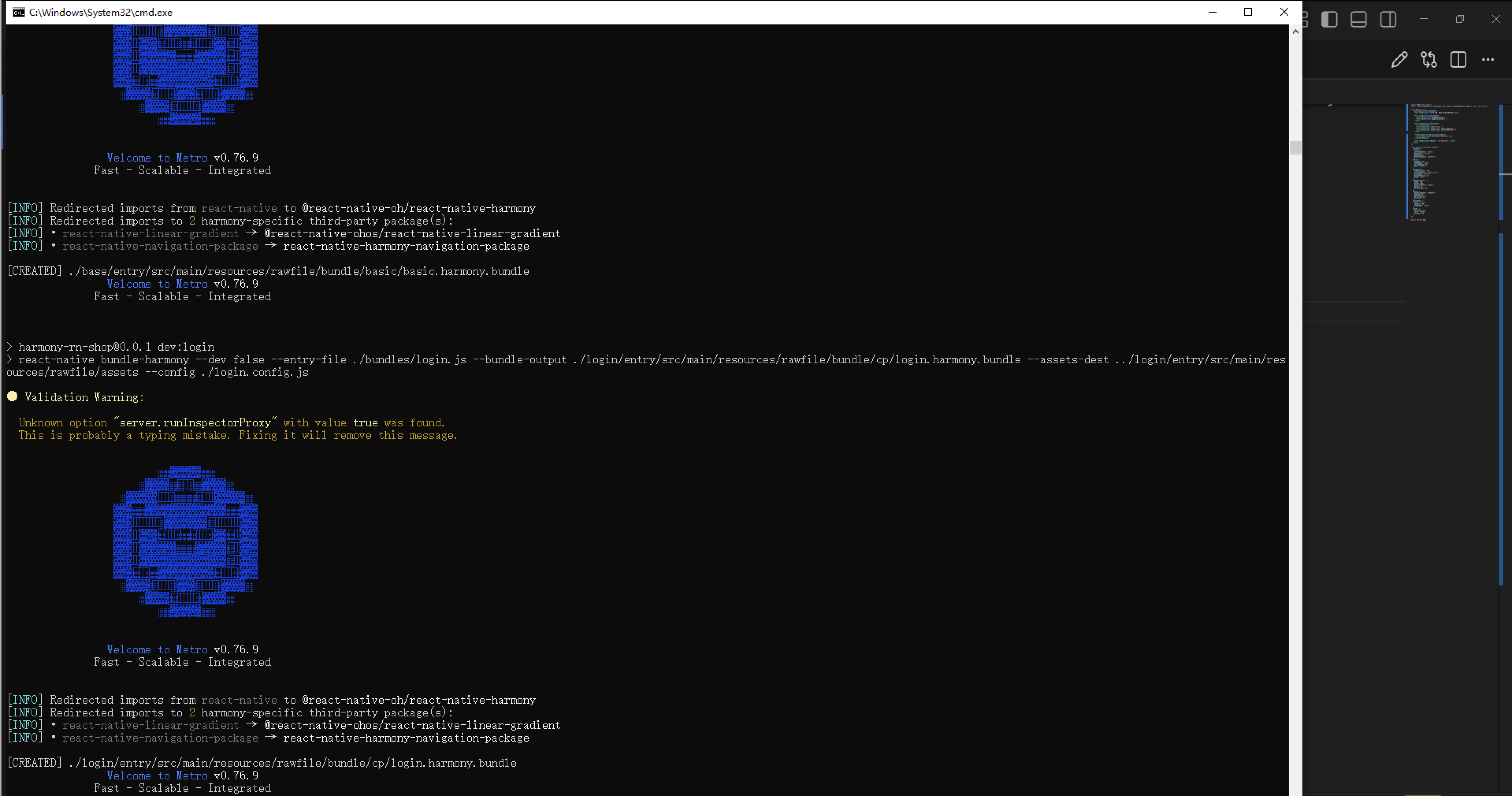
最后运行效果图如下显示: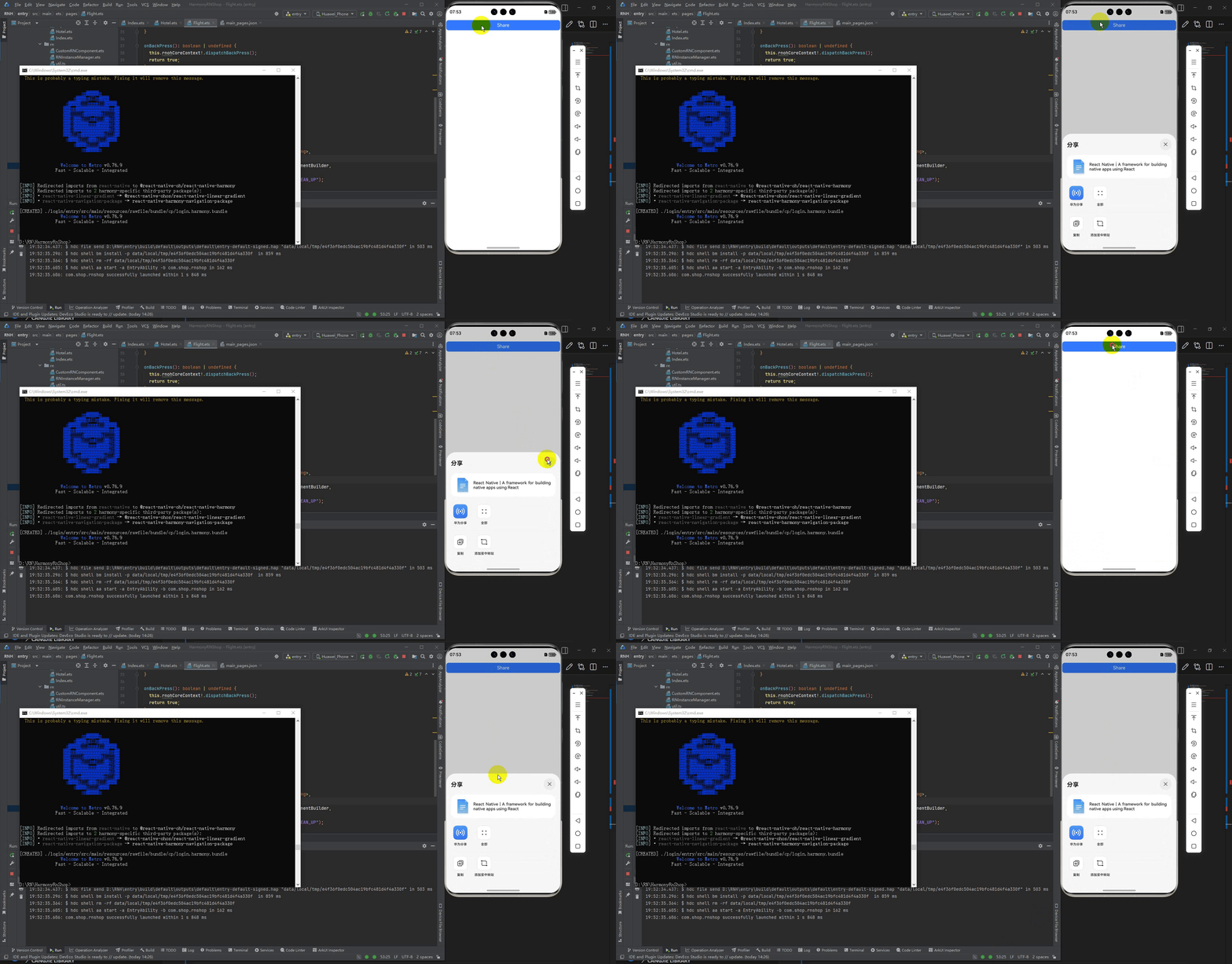
欢迎大家加入开源鸿蒙跨平台开发者社区,一起共建开源鸿蒙跨平台生态。

社区规范:仅讨论OpenHarmony相关问题。
更多推荐
 9
9 0
0- 0


 已为社区贡献7条内容

所有评论(0)