【江鸟中原】HarmonyOS ArkTS 课程表 App 开发实战
一、项目简介
本项目基于 HarmonyOS 最新开发框架 ArkTS,使用 DevEco Studio 开发一款轻量级但功能完整的课程表应用(ScheduleAPP)。该应用支持用户查看每日课程安排、添加/编辑课程信息、切换周视图等功能,适用于大学或中学师生日常使用。
1.1 核心功能
-
课程表展示:以周为单位显示课程安排,支持星期切换
-
添加课程:填写课程名称、教室、备注等信息
-
编辑课程:修改已有课程信息
-
查看详情:点击课程卡片查看详细信息
-
周数计算:自动计算当前学期周数
1.2 技术栈
- 开发平台:HarmonyOS SDK(API 20)
- 编程语言:ArkTS
- 工具链:DevEco Studio 6.0.0
1.3 项目源码
项目完整代码已上传至Gitee,欢迎大家下载使用。
ScheduleAPP项目开发源码 https://gitee.com/zhen-shi_1_0/schedule.git
二、开发环境搭建
- 安装 DevEco Studio 6.0 或更高版本
- 配置 HarmonyOS SDK(确保包含 API Version 20)
- 创建模拟器(推荐使用 Phone 类型设备)
- 验证环境:新建空白项目并成功运行 Hello World
提示:开发环境搭建详细步骤请看作者的其它博文。如:下面这篇博文的前两节:零基础使用 Flutter 编译开发 鸿蒙 HarmonyOS 项目教程——搭建环境篇
三、项目创建与结构说明
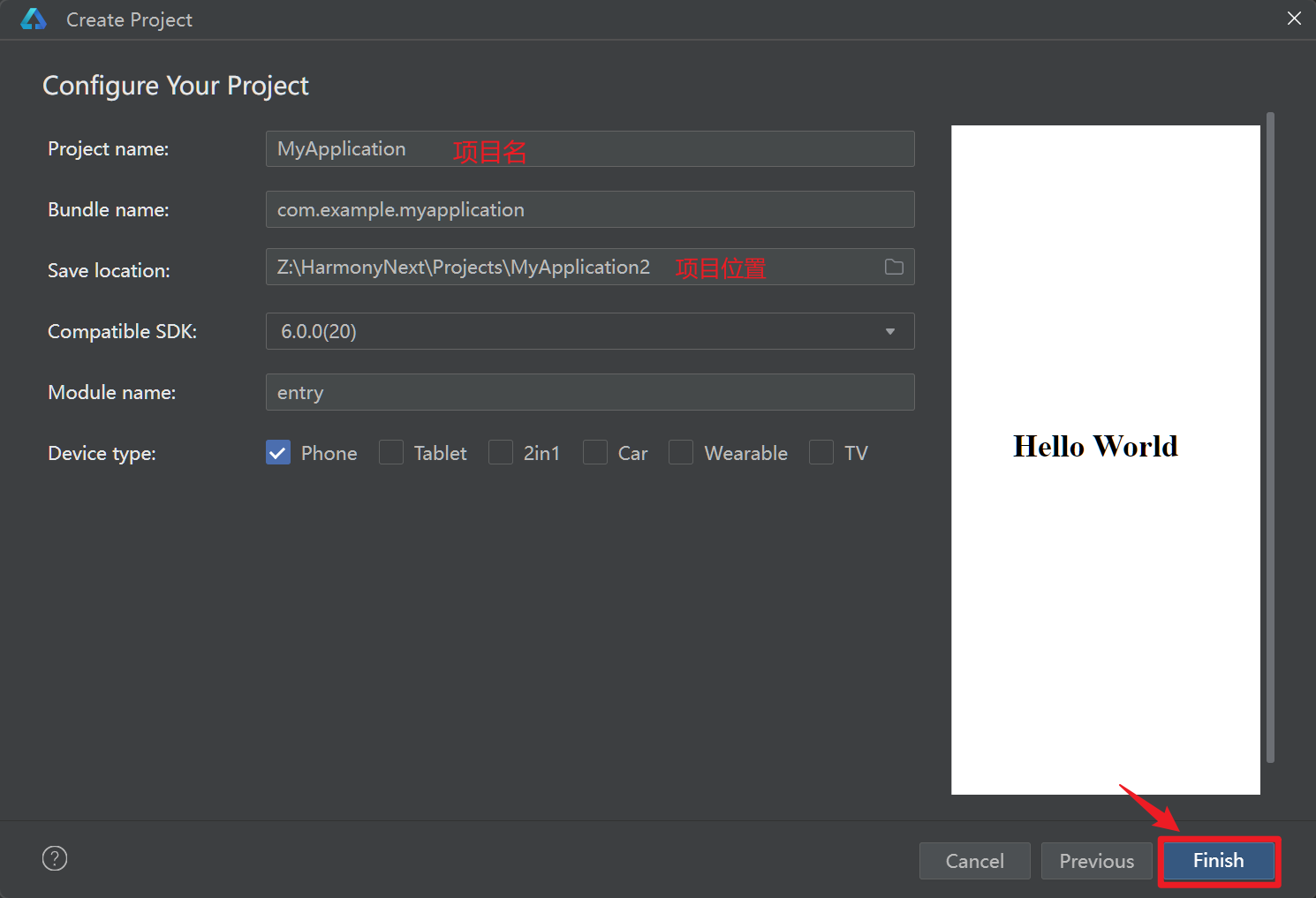
3.1 新建项目
在 DevEco Studio 中:
- 选择
File → New → Create Project - 模板:
Empty Ability - 项目配置:
- Project name:
ScheduleAPP - Bundle name:
com.example.scheduleapp - Compile SDK: API 20
- Device type: Phone
- Project name:
点击 Finish 完成创建。
3.2 项目目录结构
创建完成后,项目结构如下:
ScheduleAPP/
├── AppScope/               # 应用全局配置
│   ├── app.json5
│   └── resources/
└── entry/                  # 主模块
    └── src/main/
        ├── ets/
        │   ├── entryability/   # 应用入口
        │   └── pages/          # 页面代码(重点)
        ├── resources/          # 图片、字符串等资源
        └── module.json5        # 模块配置
四、核心功能实现
4.1 定义课程数据模型(Course.ets)
在 entry/src/main/ets/pages/class/ 目录下创建 Course.ets:
export class Course {
  public courseName: string = '';   // 课程名称
  public classroom: string = '';    // 教室
  public remark: string = '';       // 备注(如教师姓名)
  public index: number = 0;         // 唯一位置索引(0~59)

  constructor(courseName: string, classroom: string, remark: string, index: number) {
    this.courseName = courseName;
    this.classroom = classroom;
    this.remark = remark;
    this.index = index;
  }
}代码说明:
使用
class定义课程数据类包含课程的基本信息:名称、教室、备注、索引
index用于标识课程在课程表中的位置(0-59,表示60个时间槽)
4.2 主页面开发(Index.ets)
主页面代码:
import router from '@ohos.router';
import { Course } from './class/Course'

const content1: string[] = (() => {
  const arr: string[] = new Array(15).fill('');
  for (let i = 0; i < 15; i += 1) {
    arr[i] = i + 1 + '';
  }
  return arr;
})() //节数
let newName: string = '';

@Entry
@Component
struct TableHome {

  @StorageLink('name') name: string = '课程表1';
  @StorageLink('showDialog') showDialog: boolean = false;
  //课程数据数组(课程总数量)
  @State content: Course[] = (() => {
    const arr: Course[] = new Array(60);
    for (let i = 0; i < 60; i++) {
      arr[i] = new Course('', '', '',i);
    }
    return arr;
  })()
  @State currentWeekday: number = new Date().getDay() || 7 // 0-6, 0=周日,转换为1-7
  // 使用 @StorageLink 监听 AppStorage 变化
  @StorageLink('updatedCourse') updatedCourse: Course = new Course('', '', '', -1);

  @StorageLink('showDetails') showDetails: boolean = false;
  // 在 TableHome 组件中添加状态
  @StorageLink('selectedCourse') selectedCourse: Course = new Course('', '', '', -1);


  // 获取指定星期几的日期
  getWeekDate(dayOfWeek: number): string {
    let date = new Date();
    // 计算目标日期(0=周日,1=周一...)
    let targetDay = dayOfWeek - 1; // 调整为JavaScript的星期索引(0=周日)
    let diff = targetDay - date.getDay(); // 当前星期几与目标星期几的差值
    date.setDate(date.getDate() + diff);

    let month = date.getMonth() + 1;
    let day = date.getDate();
    return `${month}/${day}`;
  }
  // 计算从指定日期到当前日期经过的周数
  getWeeksSinceStart(startYear: number, startMonth: number, startDay: number): number {
    let startDate = new Date(startYear, startMonth - 1, startDay); // 注意:月份从0开始
    let currentDate = new Date();

    // 计算两个日期之间的毫秒差
    let timeDiff = currentDate.getTime() - startDate.getTime();

    // 转换为天数,再转换为周数
    let daysDiff = Math.floor(timeDiff / (1000 * 60 * 60 * 24));
    let weeksDiff = Math.floor(daysDiff / 7) + 1;

    return weeksDiff;
  }
  // 获取星期名称
  getWeekdayName(weekday: number): string {
    const names = ['', '周一', '周二', '周三', '周四', '周五', '周六', '周日'];
    return names[weekday] || '';
  }

  aboutToAppear(): void {
    // 初始化 AppStorage
    AppStorage.SetOrCreate('updatedCourse', new Course('', '', '', -1));
    AppStorage.SetOrCreate('showDetails', false);// 控制Details组件显示/隐藏
  }

  // 关键:页面每次显示时同步 updatedCourse 到 courses
  onPageShow() {
    // console.log('onPageShow: 检查 updatedCourse 是否有更新');
    this.syncUpdatedCourseToLocal();
  }
  syncUpdatedCourseToLocal(): void {
    const uc = this.updatedCourse;
    if (uc.index >= 0 && uc.index < this.content.length) {
      // 只更新对应 index 的课程
      this.content[uc.index] = new Course(
        uc.courseName,
        uc.classroom,
        uc.remark,
        uc.index
      );
      // console.log(`同步第 ${uc.index} 节课成功:`, JSON.stringify(uc));
    }
  }

  @Builder
  hingeBody(contNumber:  number) {
    Sidebar({ inputValue: content1[contNumber] })
    ForEach(this.content.slice(contNumber*5+1, contNumber*5+6), (item: Course) => {
      GridItemCase({ course: item });
    })
  }
  @Builder
  mainBody() {
    ForEach([0,1,2,3], (item: number)=> {
      this.hingeBody(item)
    })
    GridItem() {
      Text('午休');
    }
    .GridItemRestFn()
    ForEach([4,5,6,7], (index: number)=> {
      this.hingeBody(index)
    })
    GridItem() {
      Text('晚休');
    }
    .GridItemRestFn()
    ForEach([8,9,10], (index: number)=> {
      this.hingeBody(index)
    })
  }

  build() {
    //层叠布局
    Stack({
      alignContent: Alignment.BottomStart
    }) {

      Column() {
        // 导航栏
        Row() {
          Image($r('app.media.chevron_left'))
            .height(40)
            .onClick(() => {
              router.back()
            })
            .margin({
              right: 10
            })

          if (this.showDialog) {
            Dialog()
              /*.position({
                top: 100,
                left: 0,
                right: 0
              })*/
          }else {
            Text(this.name)
              .fontSize(18)
              .fontWeight(FontWeight.Bold)
              .alignSelf(ItemAlign.Center)
              .onClick(() => {this.showDialog = true;})
          }

          /*Blank()
          Image($r('app.media.menu_01'))
            .height(30)
            .onClick(() => {
              //跳转到全部课程表
            })
            .margin({
              right: 10
            })*/
        }
        .width('100%')
        .height(60)
        .padding(5)
        .backgroundColor("#F2F2F4")
        .alignItems(VerticalAlign.Center)

        Row() { //表头——星期
          Grid() {  //网格布局
            GridItem(){
              Column() {
                Text(){
                  Span(this.getWeeksSinceStart(2025,9,8).toString())  //周数
                  Span('周')
                }
                .fontSize(12)
                .fontWeight(FontWeight.Bolder)
                Image($r('app.media.chevron_down'))
                  .height(20)
              }
              .onClick(() => {
                //跳转到周数选择页面
                /*router.pushUrl({
                  url: 'pages/WeekSelectPage'
                })*/
              })
            }
            .height('100%')

            // 星期选择器
            ForEach([1,2,3,4,5,6,7],(weekday: number)=>{
              GridItem(){
                Column() {
                  Text(this.getWeekdayName(weekday))
                    .fontSize(14)
                    .fontColor(this.currentWeekday === weekday ? '#FFFFFF' : '#666666')
                    .fontWeight(this.currentWeekday === weekday ? FontWeight.Bold : FontWeight.Normal)
                    .fontWeight(FontWeight.Bold)
                    .margin({
                      bottom: 2
                    })
                  Text(this.getWeekDate(weekday+ 1)) //获取星期几的日期
                    .fontSize(10)
                }
                .justifyContent(FlexAlign.Center)
              }
              .height(40)
              .backgroundColor(this.currentWeekday === weekday ? '#007DFF' : '#F5F5F5')
              .borderRadius(8)
              .onClick(() => {
                this.currentWeekday = weekday;
              })
            })
          }
          .columnsTemplate('13fr 18fr 18fr 18fr 18fr 18fr')
          .padding({ left: 8, right: 8, top: 8, bottom: 8 })
          .columnsGap(1)  // 设置列间距
        }
        .height('8%')
        .backgroundColor("#F2F2F4")
        .margin({bottom:2}) // 底部间距

        //主体内容
        Grid() {
          this.mainBody()

          GridItem() {
            Row() {
              // 你的内容
            }
            .height(90)
            .width('100%')
          }
        }
        .width('100%')
        .height('100%')
        .columnsTemplate('13fr 18fr 18fr 18fr 18fr 18fr')
        .scrollBar(BarState.Off)
        .edgeEffect(EdgeEffect.Spring)  // 边缘效果


      }
      .height('100%')
      .width('100%')
      .alignItems(HorizontalAlign.Start)

      if (this.showDetails) {
          Details()
      }

    }
    .height('100%')
    .width('100%')

  }
}


@Component
struct GridItemCase {
  @State isSelected: boolean = false; // 是否被选中
  @Prop course: Course = new Course('','','',0);
  @State isCourse: boolean = false; //课程是否被用户填写
  @State params: Course = router.getParams() as Course; //获取用户填写的课程信息

  // 构造函数方式接收参数
  constructor(courseProp: Course) {
    super();
    this.course = courseProp;
  }

  aboutToAppear(): void {
    // 在组件即将出现时进行一次初始化判断
    if (this.course.courseName === '') {
      this.isCourse = false;
    } else {
      this.isCourse = true;
    }

  }

  build() {
    GridItem(){
      Row(){
        Column(){
          if (this.isCourse)  //课程被用户填写
          {
            Text(this.course.courseName)
              .fontSize(13)
              .fontWeight(FontWeight.Bold)
            Text(this.course.classroom)
              .TextFn()
            Text(this.course.remark)
              .TextFn()
          }else {
            if (this.isSelected) { //用户点击 被选中
              Text('+')
                .fontSize(24)
                .fontWeight(FontWeight.Bold)
                .foregroundColor(Color.Black)
            }
          }

        }
        .width('100%')
        .height('100%')
        .justifyContent(FlexAlign.Center)
        .alignItems(HorizontalAlign.Center)
      }
      .onClick(()=>{
        if (this.isCourse) {  //课程被用户填写
          AppStorage.Set('selectedCourse', this.course) // 保存选中的课程
          AppStorage.Set('showDetails', true) //显示课程信息
        }else {
          if (this.isSelected) {
            router.pushUrl({
              url: 'pages/AddCoursePage',
              params: this.course
            })
          }
          this.isSelected = !this.isSelected
          AppStorage.Set('showDetails', false)  //隐藏课程信息
        }

      })
      .height(90)
      .backgroundColor(this.isSelected ? "#f2f2f2" : Color.White)
    }
    .border({
      width: 1,
      color: "#F2F2F4",
      style: BorderStyle.Solid
    })
  }
}

//侧边栏
@Component
struct Sidebar {
  @Prop inputValue: string = ''; // 添加输入参数
  // 构造函数方式接收参数
  constructor(inputValue: string) {
    super();
    this.inputValue = inputValue;
  }
  build() {
    GridItem(){
      Column(){
        Text(this.inputValue)
          .fontSize(14)
          .fontWeight(FontWeight.Bold)
          .margin(3)
        Text("08:00")
          .TextFn()
        Text("08:45")
          .TextFn()
      }
      .width('100%')
      .height('100%')
      .justifyContent(FlexAlign.Center)
      .alignItems(HorizontalAlign.Center)
      .height(90)
      .onClick(()=>{
        // 跳转到课程时间设置页面

        /*router.pushUrl({
          url: 'pages/AddCoursePage'
        })*/
      })
    }
    .border({
      width: 1,
      color: "#F2F2F4",
      style: BorderStyle.Solid
    })
  }
}

//课程详情

@Component
struct Details {
  @StorageLink('selectedCourse') selectedCourse: Course = new Course('', '', '', -1)

  build() {
    //课程详情
    Column() {
      //标题
      Row() {
        Text('课程详情')
          .width('65%')
          .fontSize(20)
          .fontWeight(FontWeight.Bolder)
          .textAlign(TextAlign.End)
        Blank()
        Image($r('app.media.x_close'))
          .width(30)
          .onClick(() => {
            //关闭详情页面
            AppStorage.Set('showDetails', false)
          })
      }
      .padding({
        top: 15,
        right: 15
      })
      .width('100%')

      Column() {
        //课程名
        Row(){
          Circle()
            .width(10)
            .height(10)
            .borderRadius(5)
            //背景颜色需要传入
            .backgroundColor(Color.Black)
            .margin({
              right: 10
            })
            // Text('计算机网络')
          Text(this.selectedCourse.courseName) //参数courseName传入
            .fontSize(18)
            .textAlign(TextAlign.Start)
          Blank()

          Button('编辑')
            .size({width: 60, height: 30})
            .fontColor('#2f2f2f')
            .backgroundColor('#f5f5f5')
            .onClick(() => {
              //跳转到课程编辑页面
              router.pushUrl({
                url: 'pages/AddCoursePage',
                params: this.selectedCourse
              })
            })
        }
        .width('100%')
        .padding({
          right: 15
        })
        .margin({
          bottom: 10
        })
        /*组件测试数据
        Text('教室:' + '基础实验楼701')
          .margin({
            bottom: 5
          })
          .width('100%')
        Text('备注:' + '章老师')
          .margin({
            bottom: 5
          })
          .width('100%')*/
        if (this.selectedCourse.classroom !== ''){
          Text('教室:' + this.selectedCourse.classroom)
            .margin({
              bottom: 5
            })
            .width('100%')
        }
        if (this.selectedCourse.remark !== ''){
          Text('备注(如老师):' + this.selectedCourse.remark)
            .margin( {
              bottom: 5
            })
            .width('100%')
        }
        Text('周三 ' + '第1-2节' + '(8:00 - 9:40)')  //参数week、section、time传入
        .width('100%')
        .margin({
          bottom: 5
        })
        Row() {
          Text('第1-18周')
            .margin({right: 5})
          Text('单周')
            .fontSize(12)
            .backgroundColor(Color.Gray)
        }
        .width('100%')

      }
      .width('90%')
      .margin({
        top: 15
      })
      .padding(20)
      .justifyContent(FlexAlign.Start)
      .backgroundColor(Color.White)
      .borderRadius(20)

      /*Text('新建课程')
        .fontSize(20)
        .fontWeight(FontWeight.Bold)
        .fontColor(Color.Blue)
        .margin({
          top: 25,
          bottom: 10})
        .onClick(() => {
          router.pushUrl({
            url: 'pages/AddCoursePage'
          })
        })*/

    }
    .width('100%')
    .padding(12)
    .borderRadius({
      topLeft: 50,
      topRight: 50,
      bottomLeft: 20,
      bottomRight: 20
    })
    .backgroundColor('#f7f7f7')
    // .backgroundColor(Color.Pink)
    .justifyContent(FlexAlign.Center)
    .position({
      bottom: 0
    })
  }
}

@Preview
@Component
struct Dialog {
  build() {
    Row() {
      TextInput({
        placeholder: '请输入课程表名称'
      })
        .width('60%')
        .height(35)
        .onChange((value: string) => {
          newName = value;
        })
        .margin({
          right: 15
        })
      Button('确定')
        .height(35)
        .onClick(() => {
          if (newName === '') {
            newName = '课程表1'
          }
          AppStorage.Set('name', newName)
          AppStorage.Set('showDialog', false)
        })
    }
  }
}

@Extend(GridItem)
function GridItemRestFn() {
  .width('100%')
  .backgroundColor("#F2F2F2")
  .columnStart(0)
  .columnEnd(5)
}
@Extend(Text)
function TextFn() {
  .fontSize(11)
  .fontColor("#d0d0d0")
}
4.2.1 页面核心功能
该页面实现了以下核心功能:
- 显示一周(周一至周日)的课程安排网格
- 高亮当前星期,并显示对应日期(如“12/16”)
- 展示课程节数(1~15节),并分段插入“午休”“晚休”提示
- 点击空课格 → 弹出添加课程对话框(Dialog)
- 点击已有课程 → 弹出课程详情/编辑弹窗(Details)
- 支持从其他页面返回时同步更新课程数据(onPageShow + syncUpdatedCourseToLocal)
- 顶部导航栏支持返回上一页和重命名课程表
4.2.2 主要组成部分
1. 主页面(TableHome):你打开 App 第一眼看到的课程表格。
2. 课程格子(GridItemCase):表格里的每一个小方块,有的是空的(+号),有的写着“高数”“教室301”。
3. 课程详情弹窗(Details):点击一个课程后,从底部滑出的详细信息窗口,还能点“编辑”去修改。
此外还有:
- 侧边栏(Sidebar):左边显示“第1节”“第2节”……和上课时间。
- 改名对话框(Dialog):点击顶部“课程表1”时弹出的输入框。
4.2.3 关键技术与方法解析
1. @State 和 @StorageLink
@State:组件自己的共享数据,比如content数组记录60节课。@StorageLink:连接全局共享数据(叫 AppStorage),多个页面都能读写同一个数据。
举个例子:
你在详情页编辑了“高数 → 教室401”,保存后返回主页面。
主页面通过@StorageLink('updatedCourse')立刻知道课程变了,自动刷新显示。
2. Course 类
class Course {
  courseName: string;  // 课程名,如“计算机网络”
  classroom: string;   // 教室,如“实验楼701”
  remark: string;      // 备注,如“张老师”
  index: number;       // 在表格中的位置编号(0~59)
}
每个课程格子背后都有这样一个“对象”,存着所有信息。
3. Grid 布局 —— 表格布局
HarmonyOS 用 Grid + GridItem 来画表格:
- 主页面用
Grid分成 6列(1列节数 + 5列周一到周五) - 每行用
hingeBody构建一节课在5天的情况 - 插入“午休”“晚休”时,用
.columnStart(0).columnEnd(5)占满整行
效果:整齐的课程表,像 Excel 一样。
4. ForEach —— 批量生成重复内容
ForEach([0,1,2,3], (item) => { this.hingeBody(item) })自动生成“第1节、第2节、第3节、第4节”的行,不用手写4遍。
5. 日期计算 —— 自动显示“今天周几”“第几周”
new Date().getDay():获取今天是星期几(0=周日,1=周一…)getWeekDate(dayOfWeek):算出“周一对应12月16日”这样的日期getWeeksSinceStart(2025,9,8):从开学日(2025-09-08)算起,今天是第几周
效果:顶部显示“第15周”,每个星期按钮下显示“12/16”等日期。
6. 页面跳转与传参(router)
router.pushUrl({
  url: 'pages/AddCoursePage',
  params: this.course  // 把课程信息传过去
})
点击空格子 ➜ 跳转到“添加课程页”,并告诉它:“你要填的是第3节周三的位置”。
7. 点击交互逻辑(GridItemCase)
每个课程格子有两种状态:
| 状态 | 显示内容 | 点击效果 |
|---|---|---|
| 空格子 | 显示 + 号 |
再点一次 ➜ 跳转去添加课程 |
| 有课程 | 显示课程名、教室 | 点击 ➜ 弹出详情页 |
8. 弹窗显示(Details + Dialog)
- Details:用
if (this.showDetails) { Details() }控制是否显示 - Dialog:点击顶部名称时,临时替换成输入框,输完点“确定”就改名
9. @Builder
@Builder
hingeBody(contNumber: number) { ... }
把“一节课的5个格子”做成一个可复用的组件,哪里需要就写在哪里。
4.3 添加/编辑课程页面开发(AddCoursePage.ets)
创建 entry/src/main/ets/pages/AddCoursePage.ets 文件:
import router from '@ohos.router';
import { Course } from './class/Course'
@Entry
@Component
struct AddCoursePage {
@StorageLink('updatedCourse') updatedCourse: Course = new Course('', '', '', -1);
@State course: Course = new Course('','','',-1);
@State timeSlotCount: number = 1; // 时间段数量
private weekRange: string = '第9-18周';
private backgroundColor1: ResourceColor = '#007DFF';
@State isEditMode: boolean = false; // 是否为编辑模式
aboutToAppear(): void {
const params: Course = router.getParams() as Course;
if (params && params.index >= 0) {
this.course.index = params.index;
if (params.courseName !== '') {
this.course = params;
this.isEditMode = true;
}
}
}
build() {
Column() {
// 导航栏
Row() {
Text('取消')
.fontColor("#0075E6")
.fontSize(16)
.onClick(() => {
router.back()
AppStorage.Set('showDetails', false)
})
Text(this.isEditMode ? '编辑课程' : '新建课程')
.fontSize(18)
.fontWeight(FontWeight.Bold)
.alignSelf(ItemAlign.Center)
Text('完成')
.fontColor("#0075E6")
.fontSize(16)
.onClick(() => {
AppStorage.SetOrCreate('updatedCourse', this.course);
AppStorage.Set('showDetails', false)
router.back();
})
}
.width('100%')
.height(60)
.padding(10)
.backgroundColor(Color.White)
.justifyContent(FlexAlign.SpaceBetween)
.alignItems(VerticalAlign.Center)
// 内容区域
Scroll() {
Column() {
// 课程名输入
Row() {
Text('课程名')
.fontSize(20)
.fontWeight(FontWeight.Medium)
.margin({ right: 10 })
TextInput({
placeholder:'必填',
text:this.course.courseName
})
.layoutWeight(1)
.backgroundColor(Color.White)
.onChange((value: string) => {
this.course.courseName = value;
})
}
.height(60)
.margin({ top: 20, bottom: 15 })
.borderRadius(10)
.backgroundColor(Color.White)
.padding(10)
.width('90%')
// 教室输入
Row() {
Text('教室')
.fontSize(20)
.fontWeight(FontWeight.Medium)
.margin({ right: 10 })
TextInput({
placeholder: '非必填',
text:this.course.classroom
})
.layoutWeight(1)
.backgroundColor(Color.White)
.onChange((value: string) => {
this.course.classroom = value;
})
}
.width('90%')
.height(60)
.margin({ bottom: 15 })
.borderRadius(10)
.backgroundColor(Color.White)
.padding(10)
// 备注输入
Row() {
Text('备注(如老师)')
.fontSize(20)
.fontWeight(FontWeight.Medium)
.margin({ right: 10 })
TextInput({
placeholder: '非必填',
text:this.course.remark
})
.layoutWeight(1)
.backgroundColor(Color.White)
.onChange((value: string) => {
this.course.remark = value;
})
}
.width('90%')
.height(60)
.margin({ bottom: 15 })
.borderRadius(10)
.backgroundColor(Color.White)
.padding(10)
// 时段选择(简化版,后续可扩展)
Column() {
Row() {
Text('时段')
.fontSize(20)
.fontWeight(FontWeight.Medium)
.margin({ right: 10 })
Blank()
Row() {
Button(){
Text('-')
.fontSize(30)
.fontColor(Color.Black)
}
.width(40)
.height(40)
.type(ButtonType.Circle)
.backgroundColor("#F3F3F3")
.onClick(() => {
if (this.timeSlotCount > 1) {
this.timeSlotCount--;
}
})
Text(this.timeSlotCount.toString())
.textAlign(TextAlign.Center)
.fontSize(16)
.width(40)
.height(40)
Button(){
Text('+')
.fontSize(30)
.fontColor(Color.Black)
}
.width(40)
.height(40)
.type(ButtonType.Circle)
.backgroundColor("#F3F3F3")
.onClick(() => {
if (this.timeSlotCount < 3) {
this.timeSlotCount++;
}
})
}
.margin(10)
.alignItems(VerticalAlign.Center)
.justifyContent(FlexAlign.SpaceBetween)
}
.width('100%')
.height(60)
}
.backgroundColor(Color.White)
.borderRadius(10)
.width('90%')
.padding({ left: 10, right: 10 })
// 上课周数
Column() {
Row() {
Text('上课周数')
.fontSize(20)
.fontWeight(FontWeight.Medium)
Blank()
Text(this.weekRange)
.fontSize(14)
.fontColor(Color.Gray)
.margin(5)
Image($r('app.media.chevron_right'))
.width(20)
.height(20)
}
.width('100%')
.height(60)
.alignItems(VerticalAlign.Center)
// 课程背景色
Row() {
Text('课程背景色')
.fontSize(20)
.fontWeight(FontWeight.Medium)
Blank()
Circle()
.width(20)
.height(20)
.fill(this.backgroundColor1)
.margin(5)
Image($r('app.media.chevron_right'))
.width(20)
.height(20)
}
.width('100%')
.height(60)
.alignItems(VerticalAlign.Center)
}
.width('90%')
.margin(20)
.borderRadius(10)
.backgroundColor(Color.White)
.padding({ left: 10, right: 10 })
}
.width('100%')
}
}
.width('100%')
.height('100%')
.backgroundColor("#F2F2F4")
}
}4.3.1页面核心功能
这个文件叫 AddCoursePage.ets,它是课程表 App 中的 “添加/编辑课程”页面。
就像在手机上点一个空课格子后,弹出来的那个填写课程信息的界面:
- 可以输入:课程名(必填)
- 可以输入:教室、老师备注(选填)
- 可以设置:这门课占几节课(1节、2节或3节)
- 还能选:上课周数、课程颜色(颜色和周数目前只是展示,还没做选择功能)
支持两种模式:
- 新建课程(从空格子进来)
- 编辑课程(从已有课程点进来)
4.3.2 核心功能解析
1. 接收信息
const params: Course = router.getParams() as Course;
当你从主页面点击某个课程格子时,App 会把那个格子的“位置编号”(比如第3节周三)和课程内容一起传过来。
这个页面一打开,就会先看看是否有数据传入,然后进行下一步操作。
效果:
- 如果传过来的是空课程 → 显示“新建课程”
- 如果传过来的是已有课程(比如“高数”)→ 自动填好信息,标题变成“编辑课程”
2. 顶部导航栏:取消 / 标题 / 完成
Row() {
  Text('取消')...onClick(() => router.back())
  Text(this.isEditMode ? '编辑课程' : '新建课程')
  Text('完成')...onClick(() => { 保存并返回 })
}
- 点 取消:直接返回上一页,不保存
- 点 完成:把填好的课程信息存到全局共享数据(AppStorage),然后返回
关键代码:
AppStorage.SetOrCreate('updatedCourse', this.course);
这样主页面就能知道有课程信息更新,然后自动刷新显示。
3. 输入框:填课程信息
用了 HarmonyOS 的 TextInput 组件:
| 输入项 | 是否必填 | 如何工作 |
|---|---|---|
| 课程名 | 必填 | 用户一打字,this.course.courseName = value 立刻记住 |
| 教室 | 选填 | 同理,自动更新到 this.course.classroom |
| 备注 | 选填 | 比如填“张老师”,存到 remark 字段 |
所有信息都存在
this.course“课程对象”里。
4. “时段数量”调节器(+ / - 按钮)
this.timeSlotCount // 默认是1节
- 显示一个数字(1、2 或 3)
- 左边是 减号按钮(不能少于1)
- 右边是 加号按钮(最多3节)
虽然现在只是改数字,但未来可以用来控制“这门课横跨几行”(比如高数上2节,就占第1-2行)。
5. “上课周数”和“背景色”(预留功能)
private weekRange: string = '第9-18周';
private backgroundColor1: ResourceColor = '#007DFF';
- 目前只是静态显示,比如“第9-18周”、“蓝色小圆点”
颜色数组
colors准备了8种好看的颜色,方便以后做“课程分类着色”。
4.4 配置页面路由
编辑 entry/src/main/resources/base/profile/main_pages.json:
{
  "src": [
    "pages/Index",
    "pages/AddCoursePage"
  ]
}
4.5添加资源文件
4.5.1 添加图标资源
SVG图标下载地址:阿里巴巴矢量图标库
在 entry/src/main/resources/base/media/ 目录下添加以下SVG图标:
-
chevron_left.svg- 左箭头 -
chevron_right.svg- 右箭头 -
chevron_down.svg- 下箭头 -
x_close.svg- 关闭图标
4.5.2 字符串资源
编辑 entry/src/main/resources/base/element/string.json:
{
  "string": [
    {
      "name": "app_name",
      "value": "课程表"
    },
    {
      "name": "module_desc",
      "value": "课程表模块"
    },
    {
      "name": "EntryAbility_desc",
      "value": "课程表应用入口"
    },
    {
      "name": "EntryAbility_label",
      "value": "课程表"
    }
  ]
}
五、核心知识点汇总
5.1 状态管理
@State 装饰器
用于组件内部状态管理,状态变化会触发UI更新:
@State currentWeekday: number = 1;@StorageLink 装饰器
连接全局AppStorage,实现跨组件状态共享:
@StorageLink('name') name: string = '课程表1';AppStorage
全局状态存储,类似React的Context:
AppStorage.Set('name', '新课程表名');
AppStorage.Get('name');
5.2 组件通信
父子组件传参(@Prop)
// 父组件
GridItemCase({ course: item })

// 子组件
@Prop course: Course;
页面跳转传参
// 跳转
router.pushUrl({
  url: 'pages/AddCoursePage',
  params: this.course
})

// 接收参数
const params: Course = router.getParams() as Course;
5.3 布局组件
Grid(网格布局)
用于创建课程表网格:
Grid() {
  // 内容
}
.columnsTemplate('13fr 18fr 18fr 18fr 18fr 18fr')  // 6列,比例布局
Stack(层叠布局)
用于叠加详情弹窗:
Stack() {
  Column() { /* 主内容 */ }
  if (this.showDetails) {
    Details()  /* 详情弹窗 */
  }
}
5.4 生命周期
-
aboutToAppear(): 组件即将出现时调用 -
onPageShow(): 页面显示时调用 -
onPageHide(): 页面隐藏时调用
六、运行与测试
6.1 运行应用
-
连接设备或启动模拟器
-
点击
Run按钮(绿色三角形)或按Shift+F10 -
等待编译完成,应用自动安装运行
6.2 测试功能
-
查看课程表:启动后应看到空白课程表
-
添加课程:
-
点击空白单元格,出现"+"号
-
再次点击进入添加页面
-
填写课程信息,点击"完成"
-
-
查看详情:点击已有课程,查看详情弹窗
-
编辑课程:在详情页点击"编辑",修改信息
七、常见问题解决
7.1 编译错误
问题:找不到资源文件 $r('app.media.xxx')
解决:检查资源文件路径和名称是否正确
7.2 页面跳转失败
问题:router.pushUrl 报错
解决:检查 main_pages.json 中是否注册了页面
7.3 状态更新不生效
问题:修改数据后UI不更新
解决:确保使用了 @State 或 @StorageLink 装饰器
7.4 课程数据丢失
问题:应用重启后课程消失
解决:当前使用内存存储,需要添加持久化存储(后续可扩展)
八、学习资源

社区规范:仅讨论OpenHarmony相关问题。
更多推荐
 18
18 0
0- 0


 已为社区贡献1条内容

所有评论(0)