一次开发多端部署
·
这个操作就是能够使我们的的软件在不同的设备上运行
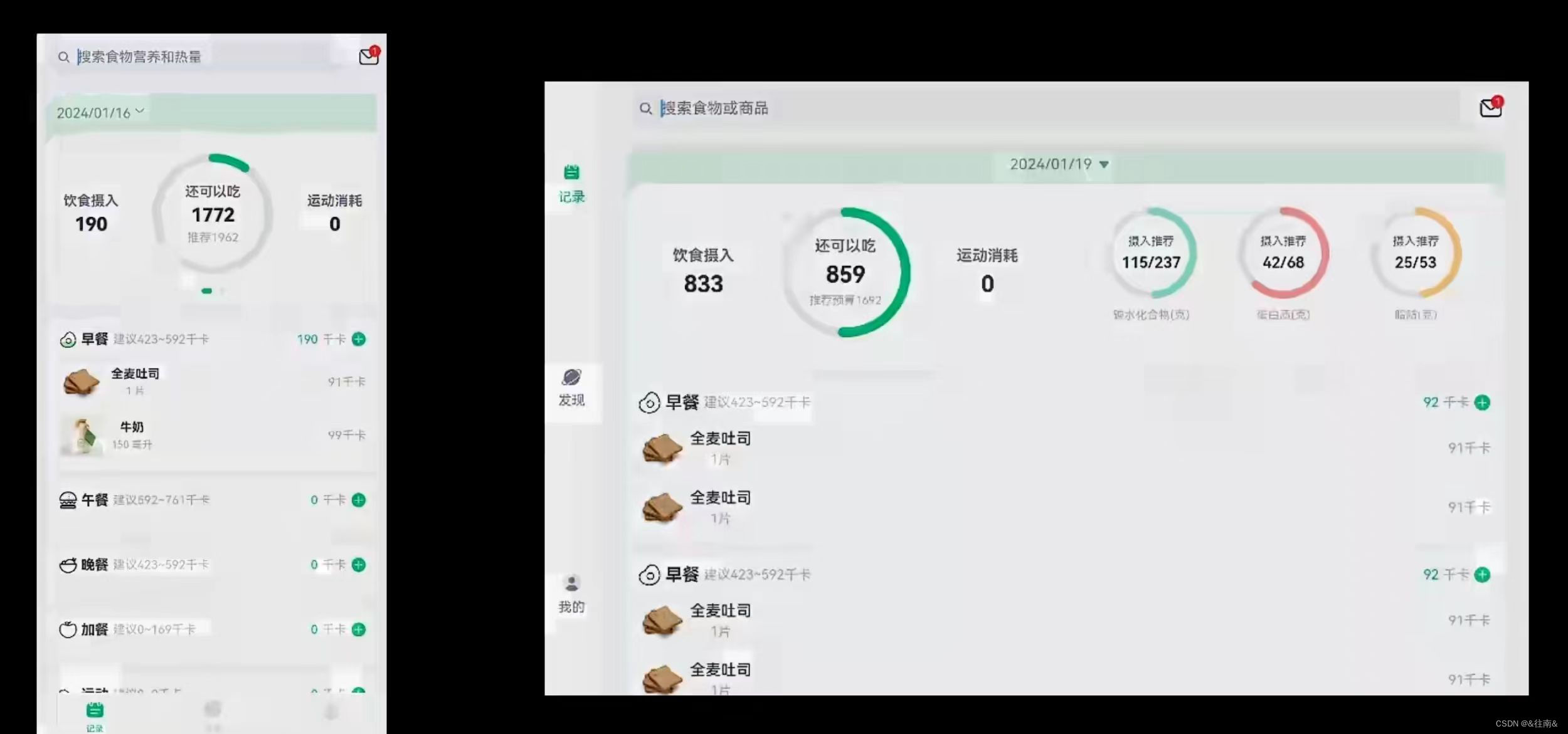
一、分析页面布局
二、代码编写
首先我们先新建一个文件用来存放我们的工具类:
export default class BreakpointSystem{

  private smListener: mediaQuery.MediaQueryListener = mediaQuery.matchMediaSync(BreakpointConstants.RANGE_SM)
  private mdListener: mediaQuery.MediaQueryListener = mediaQuery.matchMediaSync(BreakpointConstants.RANGE_MD)
  private lgListener: mediaQuery.MediaQueryListener = mediaQuery.matchMediaSync(BreakpointConstants.RANGE_LG)

  smListenerCallback(result: mediaQuery.MediaQueryResult){
    if(result.matches){
      this.updateCurrentBreakpoint(BreakpointConstants.BREAKPOINT_SM)
    }
  }

  mdListenerCallback(result: mediaQuery.MediaQueryResult){
    if(result.matches){
      this.updateCurrentBreakpoint(BreakpointConstants.BREAKPOINT_MD)
    }
  }

  lgListenerCallback(result: mediaQuery.MediaQueryResult){
    if(result.matches){
      this.updateCurrentBreakpoint(BreakpointConstants.BREAKPOINT_LG)
    }
  }

  updateCurrentBreakpoint(breakpoint: string){
    AppStorage.SetOrCreate(BreakpointConstants.CURRENT_BREAKPOINT, breakpoint)
  }

  register(){
    this.smListener.on('change', this.smListenerCallback.bind(this))
    this.mdListener.on('change', this.mdListenerCallback.bind(this))
    this.lgListener.on('change', this.lgListenerCallback.bind(this))
  }

  unregister(){
    this.smListener.off('change', this.smListenerCallback.bind(this))
    this.mdListener.off('change', this.mdListenerCallback.bind(this))
    this.lgListener.off('change', this.lgListenerCallback.bind(this))
  }
}
在这个类中我们主要完成的就是监听器的定义和使用
此外,我们还需要在首页中声明它,并给他一个初始化操作以及获取它的屏幕状态的变更:
private breakpointSystem: BreakpointSystem = new BreakpointSystem()
  aboutToAppear(){
    this.breakpointSystem.register()
  }

  aboutToDisappear(){
    this.breakpointSystem.unregister()
  }
@StorageProp('currentBreakpoint') currentBreakpoint: string = BreakpointConstants.BREAKPOINT_SM
这样我们的页面在不同设备上的变化就已经不是一个单纯的拉伸了,但是在不同的设备上我们还是要修改其布局模式的,为了能够呈现出更好的效果
首先要加一个断点类型:
declare interface BreakpointTypeOptions<T>{
  sm?:T,
  md?:T,
  lg?:T
}

export default class BreakpointType<T>{
  options: BreakpointTypeOptions<T>

  constructor(options: BreakpointTypeOptions<T>) {
    this.options = options
  }

  getValue(breakpoint: string): T{
    return this.options[breakpoint]
  }
}
我们还需要为首页完成响应式布局
import BreakpointType from '../common/bean/BreanpointType'
import BreakpointConstants from '../common/constants/BreakpointConstants'
import { CommonConstants } from '../common/constants/CommonConstants'
import BreakpointSystem from '../common/utils/BreakpointSystem'
import RecordIndex from '../view/record/RecordIndex'

@Entry
@Component
struct Index {
  @State currentIndex: number = 0
  private breakpointSystem: BreakpointSystem = new BreakpointSystem()
  @StorageProp('currentBreakpoint') currentBreakpoint: string = BreakpointConstants.BREAKPOINT_SM

  @State isPageShow: boolean = false

  onPageShow(){
    this.isPageShow = true
  }
  onPageHide(){
    this.isPageShow = false
  }

  @Builder TabBarBuilder(title: ResourceStr, image: ResourceStr, index: number) {
    Column({ space: CommonConstants.SPACE_8 }) {
      Image(image)
        .width(22)
        .fillColor(this.selectColor(index))
      Text(title)
        .fontSize(14)
        .fontColor(this.selectColor(index))
    }
  }

  aboutToAppear(){
    this.breakpointSystem.register()
  }

  aboutToDisappear(){
    this.breakpointSystem.unregister()
  }

  selectColor(index: number) {
    return this.currentIndex === index ? $r('app.color.primary_color') : $r('app.color.gray')
  }

  build() {
    Tabs({ barPosition: BreakpointConstants.BAR_POSITION.getValue(this.currentBreakpoint) }) {
      TabContent() {
        RecordIndex({isPageShow: this.isPageShow})
      }
      .tabBar(this.TabBarBuilder($r('app.string.tab_record'), $r('app.media.ic_calendar'), 0))

      TabContent() {
        Text('发现页面')
      }
      .tabBar(this.TabBarBuilder($r('app.string.tab_discover'), $r('app.media.discover'), 1))

      TabContent() {
        Text('我的主页')
      }
      .tabBar(this.TabBarBuilder($r('app.string.tab_user'), $r('app.media.ic_user_portrait'), 2))

    }
    .width('100%')
    .height('100%')
    .onChange(index => this.currentIndex = index)
    .vertical(new BreakpointType({
      sm: false,
      md: true,
      lg: true
    }).getValue(this.currentBreakpoint))
  }
}
同样的对滑动卡片的部分我们也要为其完成响应式布局
import BreakpointType from '../../common/bean/BreanpointType'
import BreakpointConstants from '../../common/constants/BreakpointConstants'
import { CommonConstants } from '../../common/constants/CommonConstants'
import DateUtil from '../../common/utils/DateUtil'
import RecordService from '../../service/RecordService'
import RecordVO from '../../viewmodel/RecordVO'
import StatsInfo from '../../viewmodel/StatsInfo'
import CalorieStats from './CalorieStats'
import DatePickDialog from './DatePickDialog'
import NutrientStats from './NutrientStats'

@Component
export default struct StatsCard {

  @StorageProp('selectedDate') selectedDate: number = DateUtil.beginTimeOfDay(new Date())
  @StorageProp('currentBreakpoint') currentBreakpoint: string = BreakpointConstants.BREAKPOINT_SM

  @Consume @Watch('handleRecordsChange') records: RecordVO[]
  @State info: StatsInfo = new StatsInfo()

  handleRecordsChange(){
    this.info = RecordService.calculateStatsInfo(this.records)
  }

  controller: CustomDialogController = new CustomDialogController({
    builder: DatePickDialog({selectedDate: new Date(this.selectedDate)})//回写到弹窗
  })
  build() {
    Column(){
      // 1.日期信息
      Row(){
        Text(DateUtil.formatDate(this.selectedDate))
          .fontColor($r('app.color.secondary_color'))
        Image($r('app.media.ic_public_spinner'))
          .width(20)
          .fillColor($r('app.color.secondary_color'))
      }
      .padding(CommonConstants.SPACE_8)
      .onClick(() => this.controller.open())

      // 2.统计信息
      Swiper(){
        // 2.1.热量统计
        CalorieStats({intake: this.info.intake, expend: this.info.expend})
        // 2.2.营养素统计
        NutrientStats({carbon: this.info.carbon, protein: this.info.protein, fat: this.info.fat})
      }
      .width('100%')
      .backgroundColor(Color.White)
      .borderRadius(CommonConstants.DEFAULT_18)
      .indicatorStyle({selectedColor: $r('app.color.primary_color')})
      .displayCount(new BreakpointType({
        sm: 1,
        md: 1,
        lg: 2
      }).getValue(this.currentBreakpoint))
    }
    .width(CommonConstants.THOUSANDTH_940)
    .backgroundColor($r('app.color.stats_title_bgc'))
    .borderRadius(CommonConstants.DEFAULT_18)
  }
}
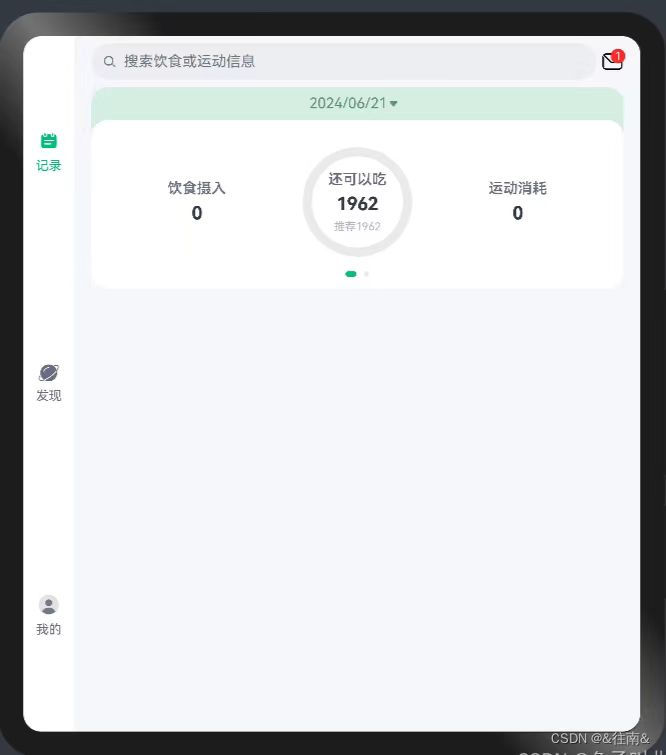
到这里我们的代码基本上就完成了接下来让我们看一下成果吧:
三、最终效果展示



社区规范:仅讨论OpenHarmony相关问题。
更多推荐
 8
8 0
0- 0


 已为社区贡献1条内容

所有评论(0)