OpenHarmony动画详解
简介 动画是组件的基础特性之一,精心设计的动画使UI变化更直观,平滑的动画效果能够很好地增强差异性功能的过渡,有助于改进应用程序的外观并改善用户体验。 OpenHarmony动画分类: 属性动画:组件的某些通用属性变化时,可以通过属性动画实现渐变过渡效果,提升用户体验。支持的属性包括width、height、backgroundColor、opacity、scale、rotate、tran
简介
动画是组件的基础特性之一,精心设计的动画使UI变化更直观,平滑的动画效果能够很好地增强差异性功能的过渡,有助于改进应用程序的外观并改善用户体验。
OpenHarmony动画分类:
-
-
显示动画:提供全局animateTo显式动画接口来指定由于闭包代码导致的状态变化插入过渡动效。
-
转场动画
-
页面间转场:在全局pageTransition方法内配置页面入场和页面退场时的自定义转场动效。
-
组件内转场:组件内转场主要通过transition属性配置转场参数,在组件插入和删除时显示过渡动效,主要用于容器组件中的子组件插入和删除时,提升用户体验(需要配合才能生效,动效时长、曲线、延时跟随animateTo中的配置)。
-
共享元素转场:设置页面间转场时共享元素的转场动效。
-
-
路径动画:设置组件进行位移动画时的运动路径。
-
窗口动画:提供启动退出过程中控件动画和应用窗口联动动画能力。
动画详解
属性动画
通过控件的animation属性实现动画效果。
animation(value: {duration?: number, tempo?: number, curve?: string | Curve | ICurve, delay?:number, iterations: number, playMode?: PlayMode, onFinish?: () => void})
| 参数 | 类型 | 必填 | 描述 |
|---|---|---|---|
| duration | number | 否 | 设置动画时长。单位为毫秒,默认动画时长为1000毫秒。 默认值:1000 |
| tempo | number | 否 | 动画播放速度。数值越大,动画播放速度越快,数值越小,播放速度越慢 值为0时,表示不存在动画。 默认值:1 |
| curve | string | | ICurve9+ | 否 | 设置动画曲线。默认曲线为线性。 默认值:Curve.Linear |
| delay | number | 否 | 设置动画延迟执行的时长。单位为毫秒,默认不延时播放。 默认值:0 |
| iterations | number | 否 | 设置播放次数。默认播放一次,设置为-1时表示无限次播放。 默认值:1 |
| playMode | 否 | 设置动画播放模式,默认播放完成后重头开始播放。 默认值:PlayMode.Normal | |
| onFinish | () => void | 否 | 状态回调,动画播放完成时触发。 |
示例
// xxx.ets
@Entry
@Component
struct AnimateToExample {
  @State widthSize: number = 250
  @State heightSize: number = 100
  @State rotateAngle: number = 0
  private flag: boolean = true

  build() {
    Column() {
      Button('change width and height')
        .width(this.widthSize)
        .height(this.heightSize)
        .margin(30)
        .onClick(() => {
          if (this.flag) {
            animateTo({
              duration: 2000,
              curve: Curve.EaseOut,
              iterations: 3,
              playMode: PlayMode.Normal,
              onFinish: () => {
                console.info('play end')
              }
            }, () => {
              this.widthSize = 100
              this.heightSize = 50
            })
          } else {
            animateTo({}, () => {
              this.widthSize = 250
              this.heightSize = 100
            })
          }
          this.flag = !this.flag
        })
      Button('change rotate angle')
        .margin(50)
        .rotate({ angle: this.rotateAngle })
        .onClick(() => {
          animateTo({
            duration: 1200,
            curve: Curve.Friction,
            delay: 500,
            iterations: -1, // 设置-1表示动画无限循环
            playMode: PlayMode.AlternateReverse,
            onFinish: () => {
              console.info('play end')
            }
          }, () => {
            this.rotateAngle = 90
          })
        })
    }.width('100%').margin({ top: 5 })
  }
}
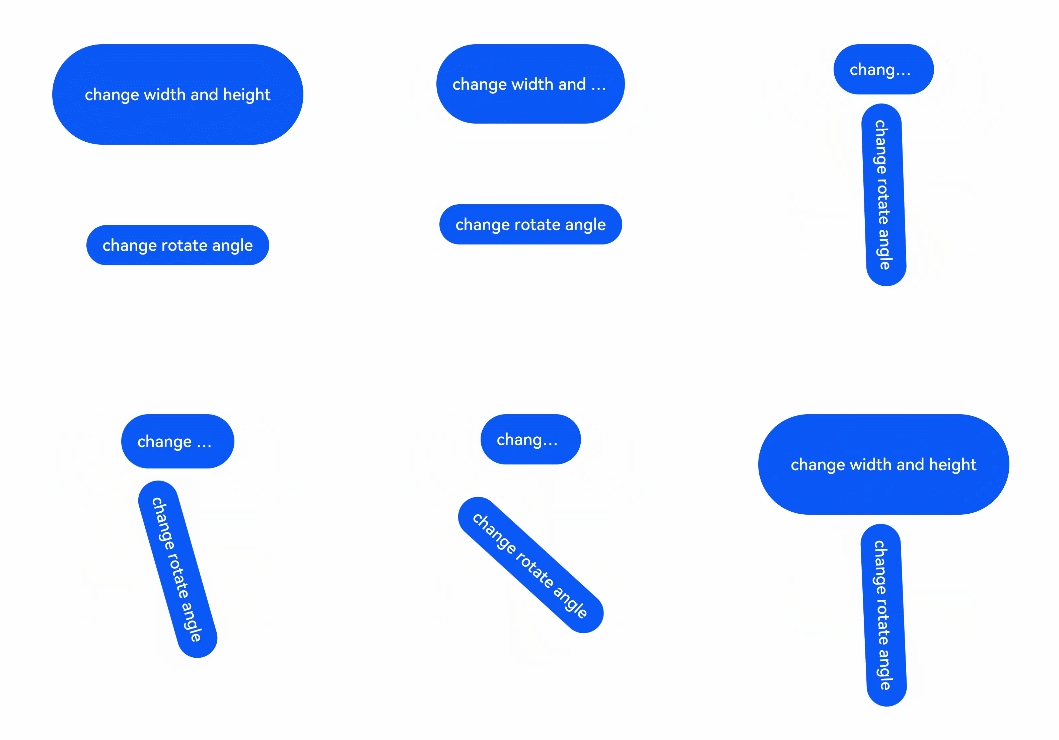
显示动画
通过全局animateTo显式动画接口来定由于闭包代码导致的状态变化插入过渡动效。
animateTo(value: AnimateParam, event: () => void): void
| 参数 | 类型 | 是否必填 | 描述 |
|---|---|---|---|
| value | 是 | 设置动画效果相关参数。 | |
| event | () => void | 是 | 指定显示动效的闭包函数,在闭包函数中导致的状态变化系统会自动插入过渡动画。 |
AnimateParam对象说明
| 名称 | 类型 | 描述 |
|---|---|---|
| duration | number | 动画持续时间,单位为毫秒。 默认值:1000 |
| tempo | number | 动画的播放速度,值越大动画播放越快,值越小播放越慢,为0时无动画效果。 默认值:1.0 |
| curve | Curve | Curves | 动画曲线。 默认值:Curve.Linear |
| delay | number | 单位为ms(毫秒),默认不延时播放。 默认值:0 |
| iterations | number | 默认播放一次,设置为-1时表示无限次播放。 默认值:1 |
| playMode | 设置动画播放模式,默认播放完成后重头开始播放。 默认值:PlayMode.Normal | |
| onFinish | () => void | 动效播放完成回调。 |
示例
// xxx.ets
@Entry
@Component
struct AnimateToExample {
  @State widthSize: number = 250
  @State heightSize: number = 100
  @State rotateAngle: number = 0
  private flag: boolean = true

  build() {
    Column() {
      Button('change width and height')
        .width(this.widthSize)
        .height(this.heightSize)
        .margin(30)
        .onClick(() => {
          if (this.flag) {
            animateTo({
              duration: 2000,
              curve: Curve.EaseOut,
              iterations: 3,
              playMode: PlayMode.Normal,
              onFinish: () => {
                console.info('play end')
              }
            }, () => {
              this.widthSize = 100
              this.heightSize = 50
            })
          } else {
            animateTo({}, () => {
              this.widthSize = 250
              this.heightSize = 100
            })
          }
          this.flag = !this.flag
        })
      Button('change rotate angle')
        .margin(50)
        .rotate({ angle: this.rotateAngle })
        .onClick(() => {
          animateTo({
            duration: 1200,
            curve: Curve.Friction,
            delay: 500,
            iterations: -1, // 设置-1表示动画无限循环
            playMode: PlayMode.AlternateReverse,
            onFinish: () => {
              console.info('play end')
            }
          }, () => {
            this.rotateAngle = 90
          })
        })
    }.width('100%').margin({ top: 5 })
  }
}
注:效果和属性动画等价
转场动画
页面间转场
在全局pageTransition方法内配置页面入场和页面退场时的自定义转场动效。
| 名称 | 参数 | 参数描述 |
|---|---|---|
| PageTransitionEnter | { type: RouteType, duration: number, curve: | string, delay: number } | 设置当前页面的自定义入场动效。 - type:不配置时表明pop为push时效果的逆播。 - duration:动画的时长,单位为毫秒。 - curve:动画曲线。string类型的取值支持"ease"、"ease-in"、"ease-out"、"ease-in-out"、"extreme-deceleration"、"fast-out-linear-in"、"fast-out-slow-in"、"friction"、"linear"、"linear-out-slow-in"、"rhythm"、"sharp"、"smooth"。 默认值:Curve.Linear - delay:动画延迟时长,单位为毫秒,默认不延迟播放。 |
| PageTransitionExit | { type: RouteType, duration: number, curve: | string, delay: number } | 设置当前页面的自定义退场动效。 - type:不配置时表明pop为push时效果的逆播 - duration:动画的时长,单位为毫秒。 - curve:动画曲线,string类型取值与PageTransitionEnter相同。 默认值:Curve.Linear - delay:动画延迟时长,单位为毫秒,默认不延迟播放。 |
RouteType枚举说明
| 名称 | 描述 |
|---|---|
| Pop | 重定向指定页面。PageA跳转到PageB时,PageA为Exit+Pop,PageB为Enter+Pop。 |
| Push | 跳转到下一页面。PageB返回至PageA时,PageA为Enter+Push,PageB为Exit+Push。 |
| None | 页面未重定向。 |
属性
| 参数名称 | 参数类型 | 必填 | 参数描述 |
|---|---|---|---|
| slide | SlideEffect | 否 | 设置页面转场时的滑入滑出效果。 默认值:SlideEffect.Right |
| translate | { x? : number | string, y? : number | string, z? : number | string } | 否 | 设置页面转场时的平移效果,为入场时起点和退场时终点的值,和slide同时设置时默认生效slide。 - x:横向的平移距离。 - y:纵向的平移距离。 - z:竖向的平移距离。 |
| scale | { x? : number, y? : number, z? : number, centerX? : number | string, centerY? : number | string } | 否 | 设置页面转场时的缩放效果,为入场时起点和退场时终点的值。 - x:横向放大倍数(或缩小比例)。 - y:纵向放大倍数(或缩小比例)。 - z:竖向放大倍数(或缩小比例)。 - centerX、centerY缩放中心点。 - 中心点为0时,默认的是组件的左上角。 |
| opacity | number | 否 | 设置入场的起点透明度值或者退场的终点透明度值。 默认值:1 |
SlideEffect枚举说明
| 名称 | 描述 |
|---|---|
| Left | 设置到入场时表示从左边滑入,出场时表示滑出到左边。 |
| Right | 设置到入场时表示从右边滑入,出场时表示滑出到右边。 |
| Top | 设置到入场时表示从上边滑入,出场时表示滑出到上边。 |
| Bottom | 设置到入场时表示从下边滑入,出场时表示滑出到下边。 |
事件
| 事件 | 功能描述 |
|---|---|
| onEnter(event: (type?: RouteType, progress?: number) => void) | 回调入参为当前入场动画的归一化进度[0 - 1]。 - type:跳转方法。 - progress:当前进度。 |
| onExit(event: (type?: RouteType, progress?: number) => void) | 回调入参为当前退场动画的归一化进度[0 - 1]。 - type:跳转方法。 - progress:当前进度。 |
组件内转场
组件内转场主要通过transition属性配置转场参数,在组件插入和删除时显示过渡动效,主要用于容器组件中的子组件插入和删除时,提升用户体验(需要配合才能生效,动效时长、曲线、延时跟随animateTo中的配置)。
属性
| 名称 | 参数类型 | 参数描述 |
|---|---|---|
| transition | TransitionOptions | 所有参数均为可选参数,详细描述见TransitionOptions参数说明。 |
TransitionOptions参数说明
| 参数名称 | 参数类型 | 必填 | 参数描述 |
|---|---|---|---|
| type | 否 | 默认包括组件新增和删除。 默认值:TransitionType.All 说明: 不指定Type时说明插入删除使用同一种效果。 | |
| opacity | number | 否 | 设置组件转场时的透明度效果,为插入时起点和删除时终点的值。 默认值:1 |
| translate | { x? : number, y? : number, z? : number } | 否 | 设置组件转场时的平移效果,为插入时起点和删除时终点的值。 -x:横向的平移距离。 -y:纵向的平移距离。 -z:竖向的平移距离。 |
| scale | { x? : number, y? : number, z? : number, centerX? : number, centerY? : number } | 否 | 设置组件转场时的缩放效果,为插入时起点和删除时终点的值。 -x:横向放大倍数(或缩小比例)。 -y:纵向放大倍数(或缩小比例)。 -z:竖向放大倍数(或缩小比例)。 - centerX、centerY缩放中心点。 - 中心点为0时,默认的是组件的左上角。 |
| rotate | { x?: number, y?: number, z?: number, angle?: Angle, centerX?: Length, centerY?: Length } | 否 | 设置组件转场时的旋转效果,为插入时起点和删除时终点的值。 -x:横向的旋转向量。 -y:纵向的旋转向量。 -z:竖向的旋转向量。 - centerX,centerY指旋转中心点。 - 中心点为(0,0)时,默认的是组件的左上角。 |
示例
// xxx.ets
@Entry
@Component
struct TransitionExample {
@State flag: boolean = true
@State show: string = 'show'
build() {
Column() {
Button(this.show).width(80).height(30).margin(30)
.onClick(() => {
// 点击Button控制Image的显示和消失
animateTo({ duration: 1000 }, () => {
if (this.flag) {
this.show = 'hide'
} else {
this.show = 'show'
}
this.flag = !this.flag
})
})
if (this.flag) {
// Image的显示和消失配置为不同的过渡效果
Image($r('app.media.testImg')).width(300).height(300)
.transition({ type: TransitionType.Insert, scale: { x: 0, y: 1.0 } })
.transition({ type: TransitionType.Delete, rotate: { angle: 180 } })
}
}.width('100%')
}
}
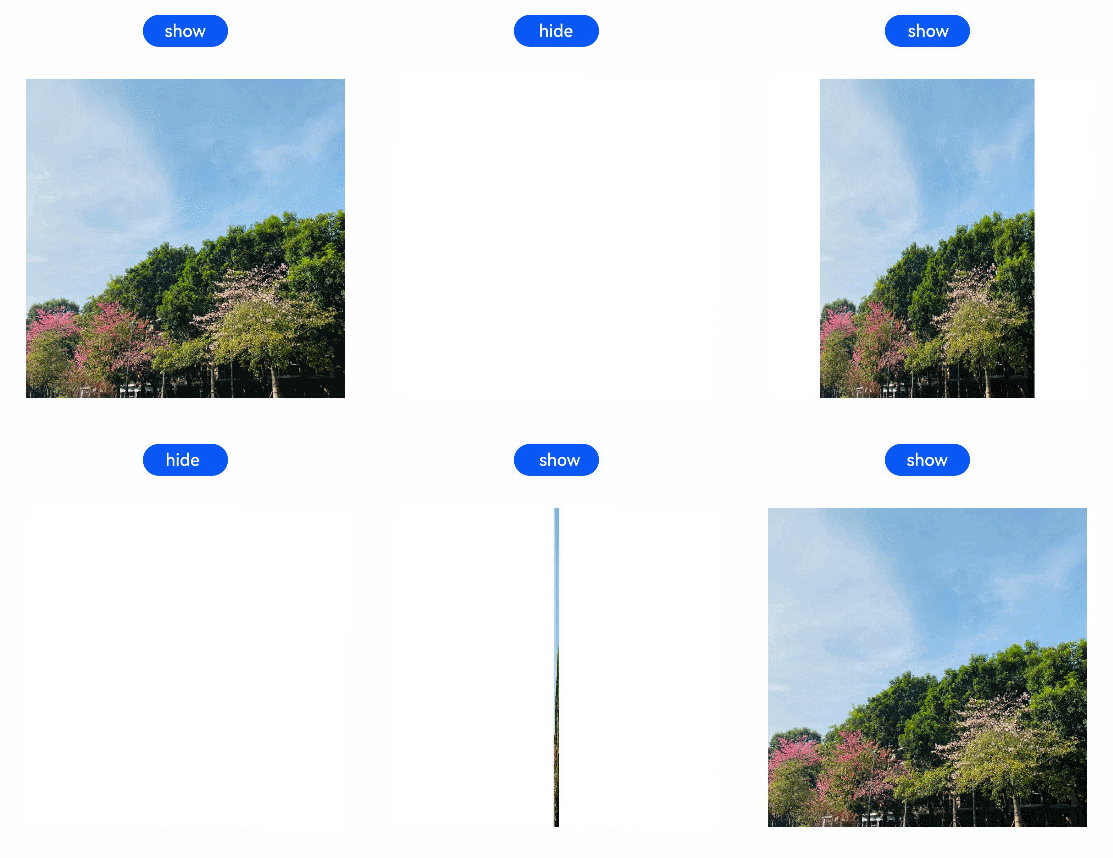
共享元素转场
设置页面间转场时共享元素的转场动效。
属性
| 名称 | 参数 | 参数描述 |
|---|---|---|
| sharedTransition | id: string, { duration?: number, curve?: Curve | string, delay?: number, motionPath?: { path: string, form?: number, to?: number, rotatable?: boolean }, zIndex?: number, type?: } | 两个页面中id值相同且不为空字符串的组件即为共享元素,在页面转场时可显示共享元素转场动效。 - id:设置组件的id。 - duration:单位为毫秒,默认动画时长为1000毫秒。 - curve:默认曲线为Linear,有效值参见 说明。 - delay:单位为毫秒,默认不延时播放。 - motionPath:运动路径信息。 - path:设置路径。 - from:设置起始值。 - to:设置终止值。 - rotatable:是否旋转。 - zIndex:设置Z轴。 - type:动画类型。 |
示例
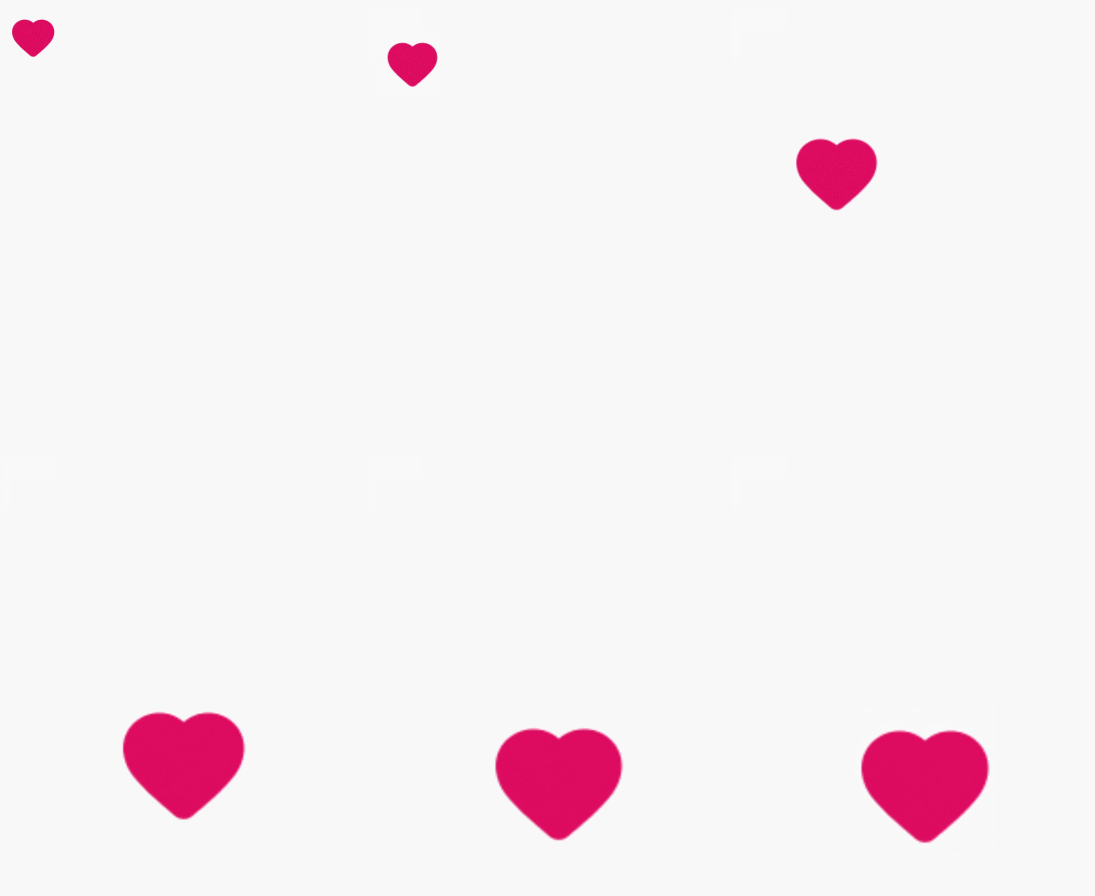
示例代码为点击图片跳转页面时,显示共享元素图片的自定义转场动效。
// xxx.ets
@Entry
@Component
struct SharedTransitionExample {
@State active: boolean = false
build() {
Column() {
Navigator({ target: 'pages/PageB', type: NavigationType.Push }) {
Image($r('app.media.ic_health_heart')).width(50).height(50)
.sharedTransition('sharedImage', { duration: 800, curve: Curve.Linear, delay: 100 })
}.padding({ left: 20, top: 20 })
.onClick(() => {
this.active = true
})
}
}
}
// PageB.ets
@Entry
@Component
struct pageBExample {
  build() {
    Stack() {
      Image($r('app.media.ic_health_heart')).width(150).height(150).sharedTransition('sharedImage')
    }.width('100%').height('100%')
  }
}
路径动画
设置组件进行位移动画时的运动路径。
属性
| 名称 | 参数类型 | 默认值 | 描述 |
|---|---|---|---|
| motionPath | { path: string, from?: number, to?: number, rotatable?: boolean } 说明: path中支持使用start和end进行起点和终点的替代,如: 'Mstart.x start.y L50 50 Lend.x end.y Z' | { '', 0.0, 1.0, false } | 设置组件的运动路径,入参说明如下: - path:位移动画的运动路径,使用svg路径字符串。 - from:运动路径的起点,默认为0.0。 - to:运动路径的终点,默认为1.0。 - rotatable:是否跟随路径进行旋转。 |
示例
// xxx.ets
@Entry
@Component
struct MotionPathExample {
@State toggle: boolean = true
build() {
Column() {
Button('click me')
// 执行动画:从起点移动到(300,200),再到(300,500),再到终点
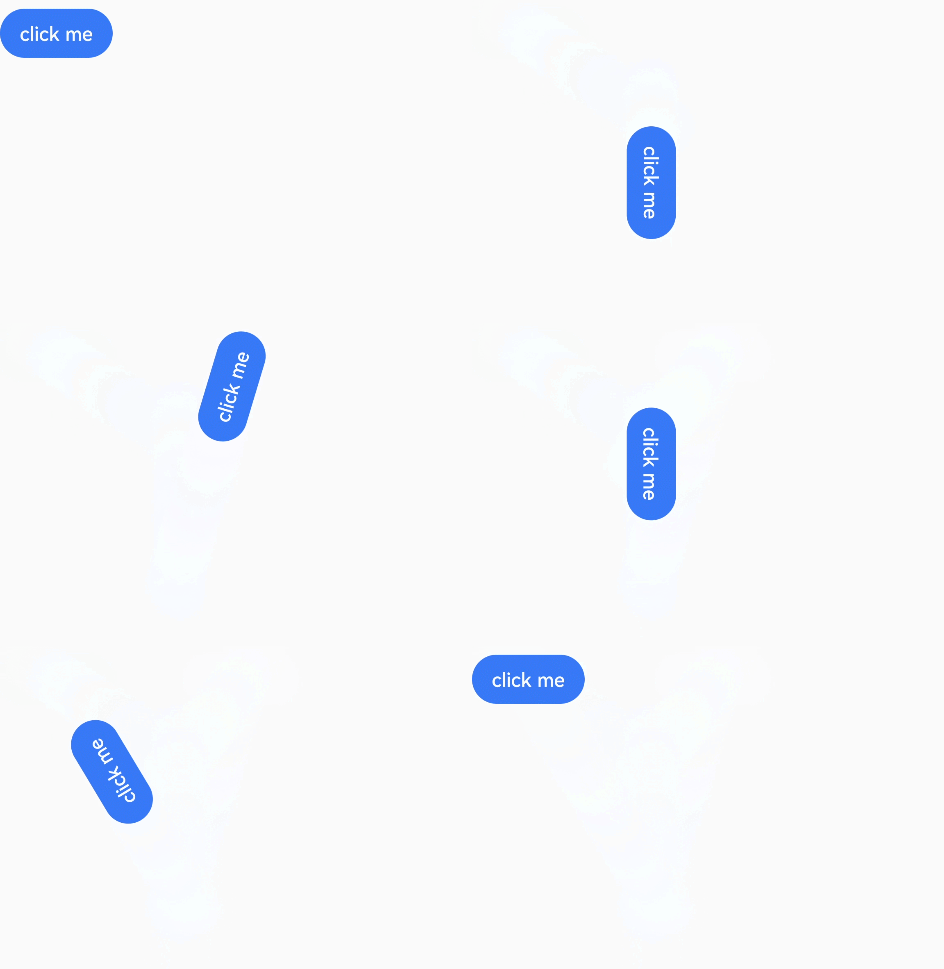
.motionPath({ path: 'Mstart.x start.y L300 200 L300 500 Lend.x end.y', from: 0.0, to: 1.0, rotatable: true })
.onClick(() => {
animateTo({ duration: 4000, curve: Curve.Linear }, () => {
this.toggle = !this.toggle // 通过this.toggle变化组件的位置
})
})
}.width('100%').height('100%').alignItems(this.toggle ? HorizontalAlign.Start : HorizontalAlign.Center)
}
}
窗口动画
窗口动画管理器,可以监听应用启动退出时应用的动画窗口,提供启动退出过程中控件动画和应用窗口联动动画能力。
导入模块
import windowAnimationManager from '@ohos.animation.windowAnimationManager'
windowAnimationManager.setController
setController(controller: WindowAnimationController): void
设置窗口动画控制器。窗口动画控制器的说明请参考。
在使用windowAnimationManager的其他接口前,需要预先调用本接口设置窗口动画控制器。
参数:
| 参数名 | 类型 | 必填 | 说明 |
|---|---|---|---|
| controller | 是 | 窗口动画的控制器。 |
windowAnimationManager.minimizeWindowWithAnimation
minimizeWindowWithAnimation(windowTarget: WindowAnimationTarget): Promise<WindowAnimationFinishedCallback>
最小化动画目标窗口,并返回动画完成的回调。使用Promise异步回调。
参数:
| 参数名 | 类型 | 必填 | 说明 |
|---|---|---|---|
| windowTarget | 是 | 动画目标窗口。 |
返回值:
WindowAnimationController
窗口动画控制器。在创建一个WindowAnimationController对象时,需要实现其中的所有回调函数。
onStartAppFromLauncher
onStartAppFromLauncher(startingWindowTarget: WindowAnimationTarget,finishCallback: WindowAnimationFinishedCallback): void
从桌面启动应用时的回调。
| 参数名 | 类型 | 必填 | 说明 |
|---|---|---|---|
| startingWindowTarget | 是 | 动画目标窗口。 | |
| finishCallback | 是 | 动画完成后的回调。 |
onStartAppFromRecent
onStartAppFromRecent(startingWindowTarget: WindowAnimationTarget,finishCallback:WindowAnimationFinishedCallback): void
从最近任务列表启动应用时的回调。
| 参数名 | 类型 | 必填 | 说明 |
|---|---|---|---|
| startingWindowTarget | 是 | 动画目标窗口。 | |
| finishCallback | 是 | 动画完成后的回调。 |
onStartAppFromOther
onStartAppFromOther(startingWindowTarget: WindowAnimationTarget,finishCallback: WindowAnimationFinishedCallback): void
从除了桌面和最近任务列表以外其他地方启动应用时的回调。
| 参数名 | 类型 | 必填 | 说明 |
|---|---|---|---|
| startingWindowTarget | 是 | 动画目标窗口。 | |
| finishCallback | 是 | 动画完成后的回调。 |
onAppTransition
onAppTransition(fromWindowTarget: WindowAnimationTarget, toWindowTarget: WindowAnimationTarget,finishCallback: WindowAnimationFinishedCallback): void
应用转场时的回调。
| 参数名 | 类型 | 必填 | 说明 |
|---|---|---|---|
| fromWindowTarget | 是 | 转场前的动画窗口。 | |
| toWindowTarget | 是 | 转场后的动画窗口。 | |
| finishCallback | 是 | 动画完成后的回调。 |
onMinimizeWindow
onMinimizeWindow(minimizingWindowTarget: WindowAnimationTarget,finishCallback: WindowAnimationFinishedCallback): void
最小化窗口时的回调。
| 参数名 | 类型 | 必填 | 说明 |
|---|---|---|---|
| minimizingWindowTarget | 是 | 动画目标窗口。 | |
| finishCallback | 是 | 动画完成后的回调。 |
onCloseWindow
onCloseWindow(closingWindowTarget: WindowAnimationTarget,finishCallback: WindowAnimationFinishedCallback): void
关闭窗口时的回调。
| 参数名 | 类型 | 必填 | 说明 |
|---|---|---|---|
| closingWindowTarget | 是 | 动画目标窗口。 | |
| finishCallback | 是 | 动画完成后的回调。 |
onScreenUnlock
onScreenUnlock(finishCallback: ): void
屏幕解锁时的回调。
| 参数名 | 类型 | 必填 | 说明 |
|---|---|---|---|
| finishCallback | 是 | 动画完成后的回调。 |
onWindowAnimationTargetsUpdate
onWindowAnimationTargetsUpdate(fullScreenWindowTarget: WindowAnimationTarget, floatingWindowTargets: Array<WindowAnimationTarget>): void
动画目标窗口更新时的回调
| 参数名 | 类型 | 必填 | 说明 |
|---|---|---|---|
| fullScreenWindowTarget | 是 | 全屏状态的动画目标窗口。 | |
| floatingWindowTargets | Array[WindowAnimationTarget](https://gitee.com/openharmony/docs/blob/master/zh-cn/application-dev/reference/apis/js-apis-windowAnimationManager.md#windowanimationtarget) | 是 | 悬浮状态的动画目标窗口 |
WindowAnimationFinishedCallback
动画完成后的回调。
onAnimationFinish
onAnimationFinish():void
结束本次动画。
应用层使用
OpenHarmony中应用层的窗口动画定义在Launcher系统应用中,由Launcher应用统一规范应用的窗口动画
WindowController的实现见WindowAnimationControllerImpl.ts,定义了onStartAppFromLauncher、onStartAppFromRecent、onStartAppFromOther、onAppTransition、onMinimizeWindow、onCloseWindow、onScreenUnlock等实现方式
import Prompt from '@ohos.prompt';
import windowAnimationManager from '@ohos.animation.windowAnimationManager';
import { CheckEmptyUtils } from '@ohos/common';
import { Log } from '@ohos/common';
import RemoteConstants from '../../constants/RemoteConstants';
const TAG = 'WindowAnimationControllerImpl';
class WindowAnimationControllerImpl implements windowAnimationManager.WindowAnimationController {
onStartAppFromLauncher(startingWindowTarget: windowAnimationManager.WindowAnimationTarget,
finishCallback: windowAnimationManager.WindowAnimationFinishedCallback): void
{
Log.showInfo(TAG, `remote window animaion onStartAppFromLauncher`);
this.setRemoteAnimation(startingWindowTarget, null, finishCallback, RemoteConstants.TYPE_START_APP_FROM_LAUNCHER);
this.printfTarget(startingWindowTarget);
finishCallback.onAnimationFinish();
}
onStartAppFromRecent(startingWindowTarget: windowAnimationManager.WindowAnimationTarget,
finishCallback: windowAnimationManager.WindowAnimationFinishedCallback): void {
Log.showInfo(TAG, `remote window animaion onStartAppFromRecent`);
this.setRemoteAnimation(startingWindowTarget, null, finishCallback, RemoteConstants.TYPE_START_APP_FROM_RECENT);
this.printfTarget(startingWindowTarget);
finishCallback.onAnimationFinish();
}
onStartAppFromOther(startingWindowTarget: windowAnimationManager.WindowAnimationTarget,
finishCallback: windowAnimationManager.WindowAnimationFinishedCallback): void {
Log.showInfo(TAG, `remote window animaion onStartAppFromOther`);
this.setRemoteAnimation(startingWindowTarget, null, finishCallback, RemoteConstants.TYPE_START_APP_FROM_OTHER);
this.printfTarget(startingWindowTarget);
finishCallback.onAnimationFinish();
}
onAppTransition(fromWindowTarget: windowAnimationManager.WindowAnimationTarget,
toWindowTarget: windowAnimationManager.WindowAnimationTarget,
finishCallback: windowAnimationManager.WindowAnimationFinishedCallback): void{
Log.showInfo(TAG, `remote window animaion onAppTransition`);
this.setRemoteAnimation(toWindowTarget, fromWindowTarget, finishCallback, RemoteConstants.TYPE_APP_TRANSITION);
this.printfTarget(fromWindowTarget);
this.printfTarget(toWindowTarget);
finishCallback.onAnimationFinish();
}
onMinimizeWindow(minimizingWindowTarget: windowAnimationManager.WindowAnimationTarget,
finishCallback: windowAnimationManager.WindowAnimationFinishedCallback): void {
Log.showInfo(TAG, `remote window animaion onMinimizeWindow`);
this.setRemoteAnimation(null, minimizingWindowTarget, finishCallback, RemoteConstants.TYPE_MINIMIZE_WINDOW);
this.printfTarget(minimizingWindowTarget);
finishCallback.onAnimationFinish();
}
onCloseWindow(closingWindowTarget: windowAnimationManager.WindowAnimationTarget,
finishCallback: windowAnimationManager.WindowAnimationFinishedCallback): void {
Log.showInfo(TAG, `remote window animaion onCloseWindow`);
this.setRemoteAnimation(null, closingWindowTarget, finishCallback, RemoteConstants.TYPE_CLOSE_WINDOW);
this.printfTarget(closingWindowTarget);
finishCallback.onAnimationFinish();
}
onScreenUnlock(finishCallback: windowAnimationManager.WindowAnimationFinishedCallback): void {
Log.showInfo(TAG, `remote window animaion onScreenUnlock`);
this.setRemoteAnimation(null, null, finishCallback, RemoteConstants.TYPE_SCREEN_UNLOCK);
finishCallback.onAnimationFinish();
}
onWindowAnimationTargetsUpdate(fullScreenWindowTarget: windowAnimationManager.WindowAnimationTarget, floatingWindowTargets: Array<windowAnimationManager.WindowAnimationTarget>): void {}
printfTarget(target: windowAnimationManager.WindowAnimationTarget): void {
if (CheckEmptyUtils.isEmpty(target) || CheckEmptyUtils.isEmpty(target.windowBounds)) {
Log.showInfo(TAG, `remote window animaion with invalid target`);
return;
}
Log.showInfo(TAG, `remote window animaion bundleName: ${target.bundleName} abilityName: ${target.abilityName}`);
Log.showInfo(TAG, `remote window animaion windowBounds left: ${target.windowBounds.left} top: ${target.windowBounds.top}
width: ${target.windowBounds.width} height: ${target.windowBounds.height} radius: ${target.windowBounds.radius}`);
}
private setRemoteAnimation(startingWindowTarget: windowAnimationManager.WindowAnimationTarget,
closingWindowTarget: windowAnimationManager.WindowAnimationTarget,
finishCallback: windowAnimationManager.WindowAnimationFinishedCallback,
remoteAnimationType: number): void {
if (!CheckEmptyUtils.isEmpty(startingWindowTarget)) {
AppStorage.SetOrCreate('startingWindowTarget', startingWindowTarget);
}
if (!CheckEmptyUtils.isEmpty(closingWindowTarget)) {
AppStorage.SetOrCreate('closingWindowTarget', closingWindowTarget);
}
if (!CheckEmptyUtils.isEmpty(finishCallback)) {
AppStorage.SetOrCreate('remoteAnimationFinishCallback', finishCallback);
}
AppStorage.SetOrCreate('remoteAnimationType', remoteAnimationType);
}
}
export default WindowAnimationControllerImpl
RemoteWindowWrapper.ets中定义了具体的窗口动画实现效果(通过animateTo实现具体的动画效果)
calculateAppProperty(remoteVo: RemoteVo, finishCallback: windowAnimationManager.WindowAnimationFinishedCallback) {
  Log.showDebug(TAG, `calculateAppProperty ${remoteVo.remoteAnimationType}`);
  if (remoteVo.remoteAnimationType == RemoteConstants.TYPE_START_APP_FROM_LAUNCHER) {
    Trace.start(Trace.CORE_METHOD_START_APP_ANIMATION);
    const callback = Object.assign(finishCallback);
    const count = remoteVo.count;
    localEventManager.sendLocalEventSticky(EventConstants.EVENT_ANIMATION_START_APPLICATION, null);
    animateTo({
      duration: 180,
      delay: 100,
      curve: Curve.Friction,
      onFinish: () => {
      }
    }, () => {
      remoteVo.startAppIconWindowAlpha = 0.0;
      remoteVo.remoteWindowWindowAlpha = 1.0;
    })

    animateTo({
      duration: 500,
      // @ts-ignore
      curve: curves.springMotion(0.32, 0.99, 0),
      onFinish: () => {
        callback.onAnimationFinish();
        Trace.end(Trace.CORE_METHOD_START_APP_ANIMATION);
        const startCount: number = AppStorage.Get(remoteVo.remoteWindowKey);
        Log.showDebug(TAG, `calculateAppProperty ${remoteVo.remoteAnimationType}, count: ${count}, startCount: ${startCount}`);
        if (startCount === count || count == 0) {
          this.removeRemoteWindowFromList(remoteVo.remoteWindowKey);
          AppStorage.SetOrCreate(remoteVo.remoteWindowKey, 0);
        }
      }
    }, () => {
      remoteVo.remoteWindowScaleX = 1.0;
      remoteVo.remoteWindowScaleY = 1.0;
      remoteVo.remoteWindowTranslateX = 0.0;
      remoteVo.remoteWindowTranslateY = 0.0;
      remoteVo.startAppIconScaleX = remoteVo.mScreenWidth / remoteVo.iconInfo?.appIconSize;
      remoteVo.startAppIconTranslateX = remoteVo.mScreenWidth / 2 - remoteVo.iconInfo?.appIconPositionX - remoteVo.iconInfo?.appIconSize / 2;
      remoteVo.remoteWindowRadius = 0;
      if (remoteVo.startAppTypeFromPageDesktop === CommonConstants.OVERLAY_TYPE_CARD) {
        remoteVo.startAppIconScaleY = remoteVo.mScreenHeight / remoteVo.iconInfo?.appIconHeight;
        remoteVo.startAppIconTranslateY = remoteVo.mScreenHeight / 2 + px2vp(remoteVo.target.windowBounds.top) - remoteVo.iconInfo?.appIconPositionY - remoteVo.iconInfo?.appIconHeight / 2;
      } else {
        remoteVo.startAppIconScaleY = remoteVo.mScreenHeight / remoteVo.iconInfo?.appIconSize;
        remoteVo.startAppIconTranslateY = remoteVo.mScreenHeight / 2 + px2vp(remoteVo.target.windowBounds.top) - remoteVo.iconInfo?.appIconPositionY - remoteVo.iconInfo?.appIconSize / 2;
      }
    })
  } else if (remoteVo.remoteAnimationType  == RemoteConstants.TYPE_MINIMIZE_WINDOW) {
    Trace.start(Trace.CORE_METHOD_CLOSE_APP_ANIMATION);
    const res = remoteVo.calculateCloseAppProperty();
    const callback = Object.assign(finishCallback);
    const count = remoteVo.count;
    localEventManager.sendLocalEventSticky(EventConstants.EVENT_ANIMATION_CLOSE_APPLICATION, null);
    animateTo({
      duration: 700,
      // @ts-ignore
      curve: curves.springMotion(0.40, 0.99, 0),
      onFinish: () => {
        callback.onAnimationFinish();
        Trace.end(Trace.CORE_METHOD_CLOSE_APP_ANIMATION);
        const startCount: number = AppStorage.Get(remoteVo.remoteWindowKey);
        Log.showDebug(TAG, `calculateAppProperty ${remoteVo.remoteAnimationType}, count: ${count}, startCount: ${startCount}`);
        if (startCount === count || count == 0) {
          this.removeRemoteWindowFromList(remoteVo.remoteWindowKey);
          AppStorage.SetOrCreate(remoteVo.remoteWindowKey, 0);
        }
      }
    }, () => {
      remoteVo.remoteWindowScaleX = 1 / res.closeAppCalculateScaleX;
      remoteVo.remoteWindowScaleY = 1 / res.closeAppCalculateScaleY;
      remoteVo.remoteWindowTranslateX = res.closeAppCalculateTranslateX;
      remoteVo.remoteWindowTranslateY = res.closeAppCalculateTranslateY;

      remoteVo.startAppIconScaleX = 1.0;
      remoteVo.startAppIconScaleY = 1.0;
      remoteVo.startAppIconTranslateX = 0.0;
      remoteVo.startAppIconTranslateY = 0.0;
      remoteVo.remoteWindowRadius = 96;
    })

    animateTo({
      duration: 140,
      delay: 350,
      curve: Curve.Friction,
      onFinish: () => {
      }
    }, () => {
      remoteVo.startAppIconWindowAlpha = 1.0;
      remoteVo.remoteWindowWindowAlpha = 0;
    })
  } else if (remoteVo.remoteAnimationType  == RemoteConstants.TYPE_CLOSE_WINDOW) {
  } else if (remoteVo.remoteAnimationType  == RemoteConstants.TYPE_APP_TRANSITION) {
    const callback = Object.assign(finishCallback);
    animateTo({
      duration: 500,
      curve: Curve.Friction,
      onFinish: () => {
        callback.onAnimationFinish();
        this.removeRemoteWindowFromList(remoteVo.remoteWindowKey);
      }
    }, () => {
      remoteVo.remoteWindowRadius = 0;
      remoteVo.remoteWindowTranslateX = 0;
      remoteVo.fromRemoteWindowTranslateX = px2vp(remoteVo.fromWindowTarget?.windowBounds.left - remoteVo.fromWindowTarget?.windowBounds.width);
    })

    animateTo({
      duration: 150,
      curve: Curve.Friction,
      onFinish: () => {
        callback.onAnimationFinish();
        this.removeRemoteWindowFromList(remoteVo.remoteWindowKey);
      }
    }, () => {
      remoteVo.remoteWindowScaleX = 0.9
      remoteVo.remoteWindowScaleY = 0.9
      remoteVo.fromRemoteWindowScaleX = 0.9
      remoteVo.fromRemoteWindowScaleY = 0.9
    })

    animateTo({
      duration: 350,
      delay: 150,
      curve: Curve.Friction,
      onFinish: () => {
        callback.onAnimationFinish();
        this.removeRemoteWindowFromList(remoteVo.remoteWindowKey);
      }
    }, () => {
      remoteVo.remoteWindowScaleX = 1.0
      remoteVo.remoteWindowScaleY = 1.0
      remoteVo.fromRemoteWindowScaleX = 1.0
      remoteVo.fromRemoteWindowScaleY = 1.0
    })
  }
}
注:若想修改系统的窗口动画效果,可通过修改对应的动画实现
底层实现
窗口动画的底层实现具体见:foundation\window\window_manager\wmserver\src\remote_animation.cpp
WMError RemoteAnimation::SetWindowAnimationController(const sptr<RSIWindowAnimationController>& controller)
{
    WLOGFI("RSWindowAnimation: set window animation controller!");
    if (!isRemoteAnimationEnable_) {
        WLOGE("RSWindowAnimation: failed to set window animation controller, remote animation is not enabled");
        return WMError::WM_ERROR_NO_REMOTE_ANIMATION;
    }
    if (controller == nullptr) {
        WLOGFE("RSWindowAnimation: failed to set window animation controller, controller is null!");
        return WMError::WM_ERROR_NULLPTR;
    }

    if (windowAnimationController_ != nullptr) {
        WLOGFI("RSWindowAnimation: maybe user switch!");
    }

    windowAnimationController_ = controller;
    return WMError::WM_OK;
}
RSIWindowAnimationController具体定义见:foundation\graphic\graphic_2d\interfaces\kits\napi\graphic\animation\window_animation_manager\rs_window_animation_controller.cpp
void RSWindowAnimationController::HandleOnStartApp(StartingAppType type,
    const sptr<RSWindowAnimationTarget>& startingWindowTarget,
    const sptr<RSIWindowAnimationFinishedCallback>& finishedCallback)
{
    WALOGD("Handle on start app.");
    NativeValue* argv[] = {
        RSWindowAnimationUtils::CreateJsWindowAnimationTarget(engine_, startingWindowTarget),
        RSWindowAnimationUtils::CreateJsWindowAnimationFinishedCallback(engine_, finishedCallback),
    };

    switch (type) {
        case StartingAppType::FROM_LAUNCHER:
            CallJsFunction("onStartAppFromLauncher", argv, ARGC_TWO);
            break;
        case StartingAppType::FROM_RECENT:
            CallJsFunction("onStartAppFromRecent", argv, ARGC_TWO);
            break;
        case StartingAppType::FROM_OTHER:
            CallJsFunction("onStartAppFromOther", argv, ARGC_TWO);
            break;
        default:
            WALOGE("Unknow starting app type.");
            break;
    }
}

void RSWindowAnimationController::HandleOnAppTransition(const sptr<RSWindowAnimationTarget>& fromWindowTarget,
    const sptr<RSWindowAnimationTarget>& toWindowTarget,
    const sptr<RSIWindowAnimationFinishedCallback>& finishedCallback)
{
    WALOGD("Handle on app transition.");
    NativeValue* argv[] = {
        RSWindowAnimationUtils::CreateJsWindowAnimationTarget(engine_, fromWindowTarget),
        RSWindowAnimationUtils::CreateJsWindowAnimationTarget(engine_, toWindowTarget),
        RSWindowAnimationUtils::CreateJsWindowAnimationFinishedCallback(engine_, finishedCallback),
    };
    CallJsFunction("onAppTransition", argv, ARGC_THREE);
}

...
通过CallJsFunction实现具体的napi调用,实现具体的动画效果

社区规范:仅讨论OpenHarmony相关问题。
更多推荐
 3
3 1
1- 0



 已为社区贡献55条内容

所有评论(0)